
ارزیابیها
In Odoo, the Appraisals application can be used to evaluate employee performance on a recurring basis. Managers can evaluate the performance of their employees, and also allow employees to do a self-assessment of their own. Appraisals are customizable, and can be set for any kind of schedule desired.
Appraisals give employees valuable feedback, including actionable goals to work toward, and measurable skills to improve upon. Additionally, appraisals may form the basis for raises, promotions, and other benefits.
Regular appraisals are good for both the employees and the company, since they can accurately measure performance based on company goals, and show employees where they need to improve.
پیکربندی
The Configuration menu in the Appraisals application is where the settings can be configured, feedback templates can be edited, frequencies can be set, evaluation scales can be managed, data for 360 feedback can be stored, and goal tags can be viewed/created.
تنظیمات
To access the Settings menu, navigate to .
Feedback templates
Feedback templates are form outlines used during an employee appraisal. Any edits made to a template are, ultimately, reflected in the appraisals sent to employees.
There are two default templates pre-configured in Odoo Appraisals: one for employee feedback, and one for manager feedback. Each contains several sections, along with questions, and brief explanations for how to respond to the questions.
The Employee Feedback Template has the following sections: My work, My future, and My feelings.
The Manager Feedback Template has the following sections: Feedback, Evaluation, and Improvements.
Any desired changes to the default feedback templates can be made by making changes directly in each template.
ارزیابیها
The Appraisals section of the settings menu determines the frequency that appraisals are performed, and if it is possible to request additional feedback.
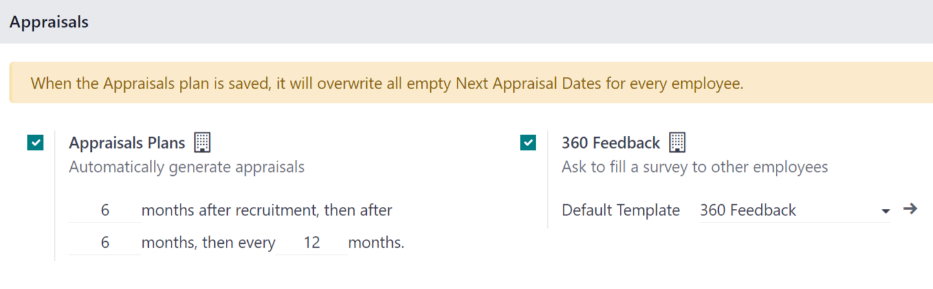
طرحهای ارزیابیها
By default, appraisals are pre-configured to be automatically created six months after an employee is hired, with a second appraisal exactly six months after that.
پس از تکمیل دو ارزیابی اولیه در سال اول کارمند، ارزیابیهای بعدی فقط سالی یک بار (هر دوازده ماه) ایجاد میشوند.
برای اصلاح این برنامه زمانی، تعداد ماهها را در فیلدهای خالی بخش طرحهای ارزیابی تغییر دهید.
مهم
If the Appraisals Plans section is modified, all empty Next Appraisal Dates are modified for all employees.
360 feedback
The 360 Feedback option can be enabled to allow managers to request feedback from other employees using a different survey form, at any time, independent of the appraisal schedule.
Typically, managers ask for feedback from other people who work with an employee they manage. This includes the employee's various managers, peers, and direct reports.
To view the 360 Feedback survey, click the → Internal link icon at the end of the Default Template field. The 360 Feedback survey loads, and any desired changes to the survey can be made.
For more information on how to edit a survey, refer to the ایجاد نظرسنجیها document.
مهم
The 360 Feedback form is a pre-configured survey within the Surveys application. In order to use the 360 Feedback option, including the ability to edit the survey, the Surveys application must be installed.
Evaluation scale
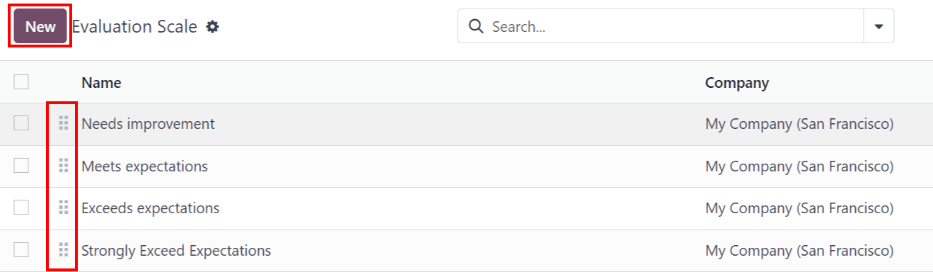
On each employee appraisal form, final rating options appear by default. To view and edit these options, navigate to . This presents the ratings in a list view.
The pre-configured ratings are Needs Improvement, Meets Expectations, Exceeds Expectations, and Strongly Exceeds Expectations. To add another rating, click the New button.
When the New button is clicked on the Evaluation Scale page, a blank line appears at the bottom of the list. Enter the name of the rating in the field.
To rearrange the order of the ratings, click the (six small gray boxes) icon to the left of a rating, and drag the rating to the desired position on the list.
360 feedback
The 360 Feedback section displays information for all the surveys currently configured in the Appraisals application. To view the surveys, and their statistics, navigate to .
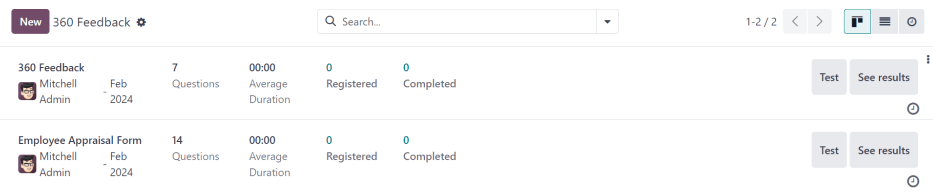
Each appraisal (or survey) is presented in its own line on the 360 Feedback page, along with various information related to that particular appraisal.
هر ارزیابی شامل اطلاعات زیر است:
نام نظرسنجی: نام نظرسنجی مشخص شده.
مسئول: کارمند مسئول نظرسنجی، به همراه ماه و سالی که این مسئولیت به او واگذار شده است.
سؤالات: تعداد سؤالات در آن نظرسنجی.
میانگین مدت زمان: میانگین مدت زمانی که یک کاربر برای تکمیل نظرسنجی صرف میکند.
ثبت شده: تعداد افرادی که نظرسنجی برایشان ارسال شده است.
تکمیل شده: تعداد افرادی که نظرسنجی را تکمیل کردهاند.
Each appraisal also has two buttons at the end of each line: a Test button and a See Results button.
To see what an appraisal looks like for the end user (i.e. an employee), click the Test button, and the appraisal loads in a new browser tab. The entire appraisal loads, and can be clicked through without having to enter any answers.
To exit, close the tab. Or, click This is a Test Survey. → Edit Survey at the top of the page to be taken to the detail form for that particular survey.
To view the results from everyone who completed an appraisal, click the See Results button. This presents all the answers for the survey in a new tab. Each question provides information on how many people responded to a question, and how many people skipped it. All answers for each question are visible.
To exit, close the tab. Or, click → Edit Survey at the top of the page to be taken to the detail form for that particular survey.
In addition to viewing the responses from past appraisals and surveys, new surveys can also be created from the 360 Feedback page. Simply click the New button in the top-left of the page to create a new survey.
For more information on how to create a survey, refer to the ایجاد نظرسنجیها document.
توجه
In previous versions of Odoo, this section was referred to as Surveys.
همچنین ملاحظه نمائید