Vehicle models
هنگام افزودن وسیله نقلیه به ناوگان حمل و نقل، مدل وسیله نقلیه را برای نگهداری سوابق بهروز مشخص کنید، که جزئیات خاصی مانند برنامههای نگهداری و سازگاری قطعات را ردیابی میکند.
Odoo comes with preconfigured car models from four major auto manufacturers: Audi, BMW, Mercedes, and Opel.
If a new vehicle model joins the fleet, and it is not one of the preconfigured models from these manufacturers, the model (and/or manufacturer) must be added to the database.
Preconfigured models
The following models are preconfigured in Odoo, and do not need to be added to the database:
AUDI |
BMW |
Mercedes |
Opel |
|---|---|---|---|
A1 |
Serie 1 |
Class A |
Agilia |
A3 |
Serie 3 |
Class B |
Ampera |
A4 |
Serie 5 |
Class C |
Antara |
A5 |
Serie 6 |
Class CL |
Astra |
A6 |
Serie 7 |
Class CLS |
AstraGTC |
A7 |
Serie Hybrid |
Class E |
Combo Tour |
A8 |
Serie M |
Class GL |
Corsa |
Q3 |
Serie X |
Class GLK |
Insignia |
Q5 |
Serie Z4 |
Class M |
Meriva |
Q7 |
Class R |
Mokka |
|
TT |
Class S |
Zafira |
|
Class SLK |
Zafira Tourer |
||
Class SLS |
افزودن مدل جدید
To add a new vehicle model, navigate to . Click New, and in a new vehicle model form, enter the following information on the form.
توجه
Be advised, some fields are specific to Belgian based companies, so not all fields or sections may be visible depending on the location of the company.
نام مدل: نام مدل را در فیلد وارد کنید.
Manufacturer: select the manufacturer from the drop-down menu. If the manufacturer is not configured, type in the manufacturer, and click Create or Create and edit...
توجه
When the manufacturer is selected, if it is one of the default manufacturers in Odoo, the logo for the manufacturer automatically loads in the image box in the top-right corner.
Vehicle Type: select one of two preconfigured vehicle types, either Car or Bike, from the drop-down menu. The vehicle types are hardcoded in Odoo, and are integrated with the Payroll application, since vehicles can be part of an employee's benefits. Adding additional vehicle types is not possible as it affects payroll.
Category: select a category for the vehicle from the drop-down menu. To create a new category, type in the category and then click Create (new category).
تب اطلاعات
در تب اطلاعات، جزئیات مربوط به مدل خودرو، مانند اندازه خودرو، ظرفیت سرنشین، تنظیمات هزینه و اطلاعات موتور را مشخص کنید.
Model section
تعداد صندلی: تعداد سرنشین خودرو را وارد کنید.
تعداد درب: تعداد دربهایی که خودرو دارد.
رنگ: رنگ خودرو را وارد نمایید.
سال مدل: سالی که خودرو در آن تولید شده است را وارد کنید.
Trailer Hitch: tick this checkbox if the vehicle has a trailer hitch installed.
Salary section
توجه
The Salary section only appears for Belgian-based companies, and only if the company has their localization setting set to Belgium. The cost values are all monthly, with the exception of the Catalog Value (VAT Incl.).
Can be requested: tick this checkbox if employees can request this model vehicle, if a vehicle is part of their employee contract.
ارزش کاتالوگ (مشمول مالیات): قیمت خرده فروشی پیشنهادی تولیدکننده خودرو به هنگام خرید یا لیزینگ را وارد کنید.
C02 fee: represents the carbon dioxide emission fee paid to the Belgian government. This value is automatically calculated, based on Belgian laws and regulations, and cannot be modified. The value is based on the figure entered in the CO2 Emissions field (in the Engine section of the Information tab) on the vehicle form.
مهم
تغییر فیلد انتشار CO2 مقدار فیلد هزینه CO2 را تنظیم میکند.
Cost (Depreciated): enter the monthly vehicle cost, which appears in the salary configurator for future employees. This value impacts the gross and net salary of the employee assigned to the vehicle. This figure is depreciated over time, according to local tax laws. The Cost (Depreciated) does not depreciate automatically on the vehicle model, it only depreciates based on the contract linked to a specific vehicle.
Total Cost (Depreciated): this value is the combination of the Cost (Depreciated) and the C02 fee fields. It also depreciated over time.
موتور
Fuel Type: select the type of fuel the vehicle uses from the drop-down menu. The options are Diesel, Gasoline, Hybrid Diesel, Hybrid Gasoline, Plug-in Hybrid Diesel, Plug-in Hybrid Gasoline, CNG, LPG, Hydrogen, or Electric.
انتشار CO2: کربن دی اکسید میانگین تولیدی خودرو را بر حسب گرم در کیلومتر وارد کنید. این اطلاعات از طرف تولیدکننده خودرو ارائه میشود.
CO2 Standard: enter the standard amount of carbon dioxide in grams per kilometer (g/km) for a similar-sized vehicle.
Transmission: select Manual or Automatic transmission from the drop-down menu.
توان: اگر خودرو الکتریکی یا هیبریدی باشد، توان مصرفی خود را بر حسب کیلووات (kW) وارد کنید.
اسب بخار: نیروی اسب بخار خودرو را در این فیلد وارد کنید.
Horsepower Taxation: enter the amount that is taxed, based on the size of the vehicle's engine. This is determined by local taxes and regulations, and varies depending on the location. It is recommended to check with the accounting department to ensure this value is correct.
Tax Deduction: this field auto-populates, according to the engine specifications, and cannot be modified. The percentage is based on the localization settings and local tax laws.
تب فروشندهها
Specify the vendors a vehicle can be purchased from in this tab. With proper setup, requests for quotations for vehicles can be easily created through Odoo's Purchase app.
To add a vendor, click Add, which opens an Add: Vendors pop-up window, with a list of all the vendors currently in the database. Add a vendor by ticking the checkbox next to the vendor name, then click Select. There is no limit to the number of vendors that can be added to this list.
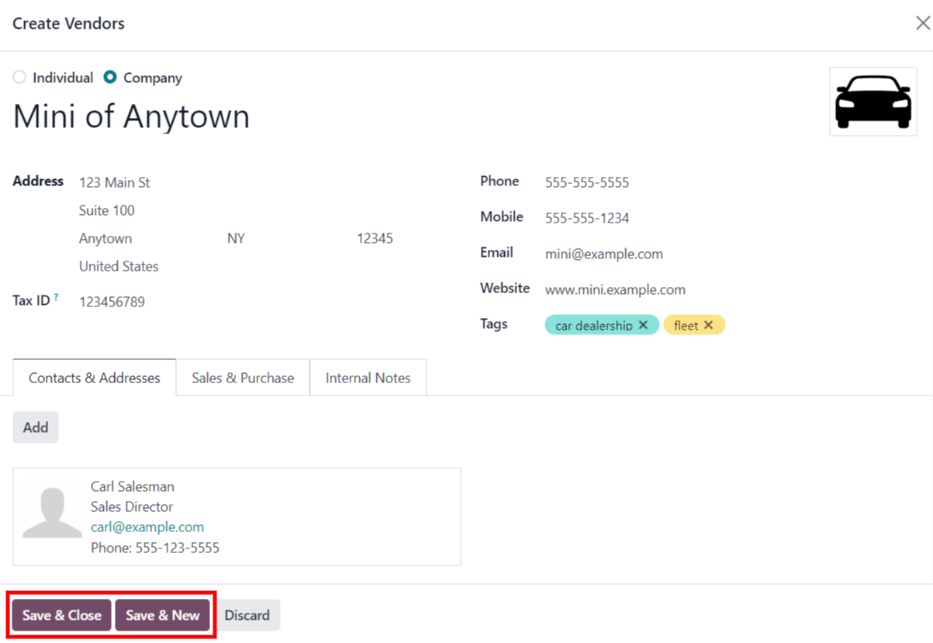
If a vendor is not in the database, add a vendor by clicking New in the bottom-left of the Add: Vendors pop-up window. In the Create Vendors form that appears, enter the necessary information, then click Save & Close to add the vendor, or click Save & New to add the current vendor and create another new vendor.
دستهبندی مدل
To best organize a fleet, it is recommended to have vehicle models housed under a specific category, to easily see what kinds of vehicles are in the fleet. Model categories are set on the vehicle model form.
Odoo does not come with any models preconfigured; all models must be added.
To view any models currently set up in the database, navigate to . All models are displayed in a list view.
افزودن دستهبندی مدل جدید
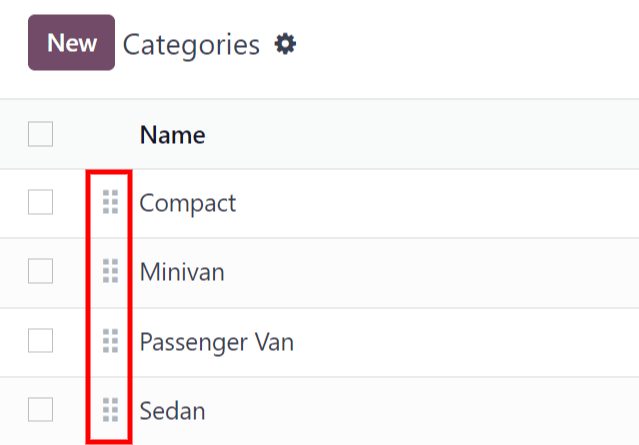
To add a new category, click the New button in the top-left corner of the Categories page. A new entry line appears at the bottom of the list. Type in the new category, then either click Save, or click anywhere on the screen, to save the entry.
برای سازماندهی مجدد نحوه نمایش دستهبندیها در لیست، روی آیکون :icon:`oi-draggable` (قابل کشیدن) در سمت راست نام دستهبندی مورد نظر کلیک کرده و ردیف را به موقعیت مورد نظر بکشید.
The order of the list does not affect the database in any way. However, it may be preferable to view the vehicle categories in a specific order, for example, by size, or the numbers of passengers the vehicle can carry.