محصولات
Odoo's Lunch app does not come with any products preconfigured. The individual products being offered must first be configured before orders can be placed.
To add and configure products for the Lunch app, navigate to . Next, click the New button in the top-left corner, and a blank product form loads.
اطلاعات زیر را در فرم وارد کنید:
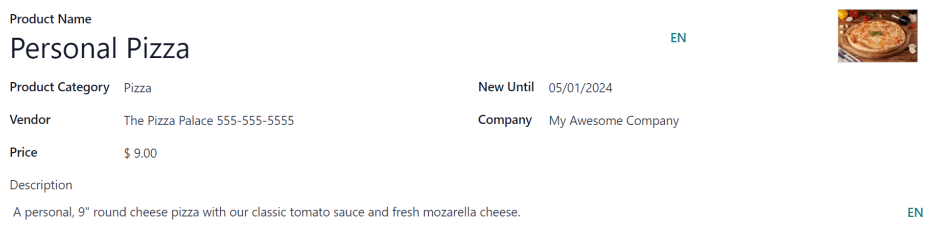
Product Name: enter the name for the product. This field is required.
Product Category: using the drop-down menu, select the category this product falls under. This field is required.
Vendor: using the drop-down menu, select the vendor that supplies this product. This field is required.
Price: enter the price for the product. The currency is determined by the company's localization.
Description: enter a description of the product in this field. This description appears beneath the product photo when users are viewing the day's options.
New Until: using the calendar popover, select the date on which the product is no longer labeled as new. Until this date, a green
Newtag appears on the product.Company: if the product should only be available to a specific company, select it from the drop-down menu. If this field is left blank, this product is available for all companies in the database.
Image: hover over the image box in the top-right corner of the form, and click the :icon:`fa-pencil` (pencil) icon that appears. A file explorer pop-up window appears. Navigate to the image, then click Open.
دستهبندیهای محصول
Product categories organize the offerings in the Lunch app, and allows users to quickly filter them when reviewing the menu for the day.
برای افزودن یا ویرایش دستهبندیها، وارد مسیر شوید. دستهبندیهای موجود در نمای لیستی ظاهر میشوند.
In the Lunch app, there are four default categories: Sandwich, Pizza, Burger, and Drinks.
برای افزودن دستهبندی جدید، روی دکمه جدید در گوشه بالا و راست کلیک کنید تا فرم دستهبندی خالی بارگیری شود.
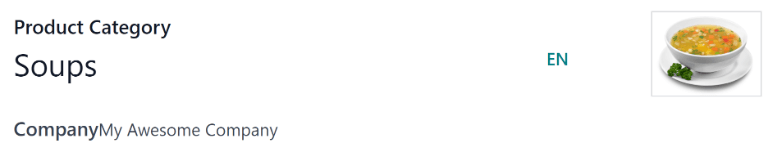
نامی را در فیلد دستهبندی محصول وارد کنید. اگر دستهبندی مختص شرکت است و فقط باید برای یک شرکت خاص ظاهر شود، شرکت را از منوی کشویی انتخاب کنید.
در صورت تمایل، یک عکس برای دستهبندی اضافه کنید. روی کادر تصویر در بالا و چپ هاور کنید و روی آیکون :icon:`fa-pencil` (مداد) کلیک کنید. این کار پنجره پاپآپ فایل اکسپلورر را باز میکند. تصویر را پیدا کنید و روی باز کردن کلیک کنید.