
بستن تیکتها
Once work has been completed on a Helpdesk ticket in Odoo, there are several ways it can be closed.
In addition to manually closing solved tickets, automatically closing inactive tickets keeps the pipeline up-to-date. At the same time, allowing customers to close their own tickets minimizes confusion around whether an issue is considered solved or not. This results in increased operational capacity for support teams, and higher customer satisfaction.
بستن دستی تیکتهای حل شده
با پیشروی کار، تیکت در داشبورد سامانه پشتیبانی به مراحل بعدی منتقل میشود. پس از حل شدن مشکل، تیکت به مرحله جمع شده منتقل میشود. در این حالت تیکت بسته شده تلقی میشود.
To fold a stage, navigate to the app dashboard, and click on a team to open the to reveal that team's pipeline on a separate page.
From the pipeline page, hover over a stage's heading, and click the ⚙️ (gear) icon that appears in the top-right corner of that stage's Kanban column.
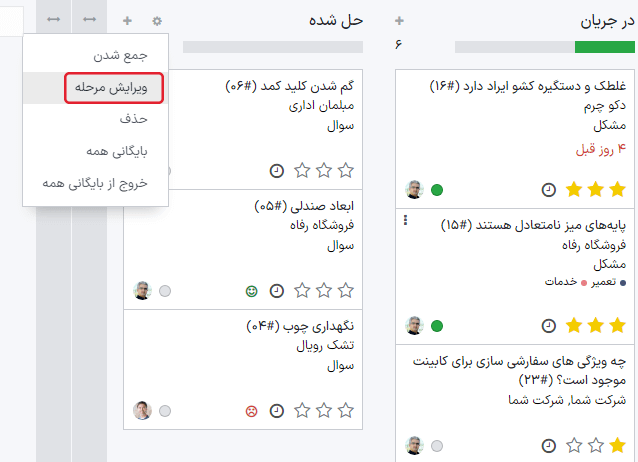
From the menu that appears, select Edit. This opens the stage's settings in a pop-up window.
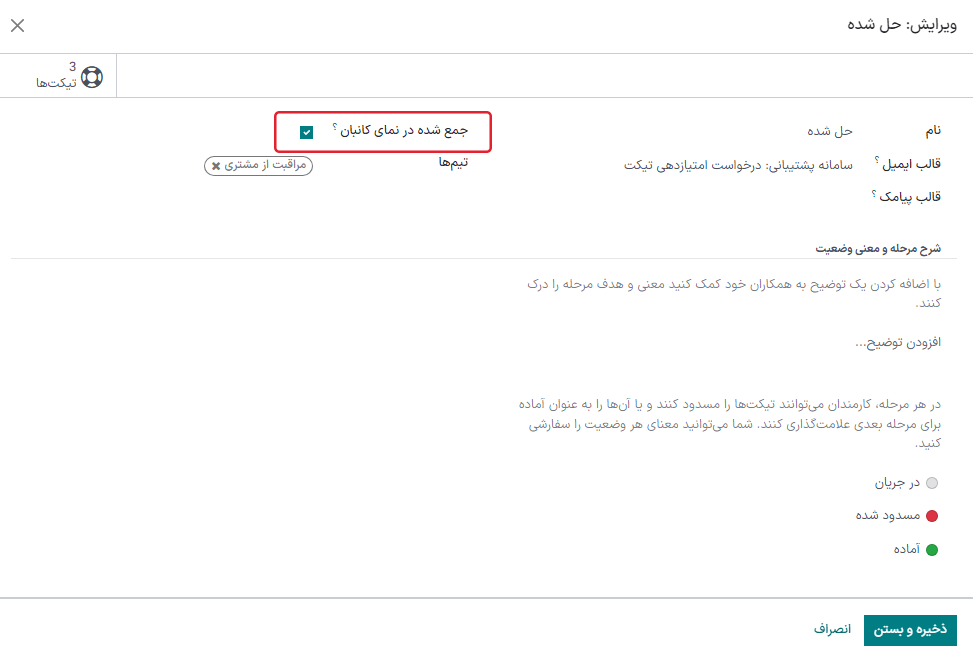
In the pop-up window, check the box labeled, Folded in Kanban, towards the top of the window. Then, click Save & Close to confirm the changes.
Tickets that reach this stage are now considered: closed.
هشدار
Clicking the ⚙️ (gear) icon also displays the option to Fold the stage. This setting folds the stage temporarily to simplify the Kanban view. This does not close the tickets in this stage. It also does not permanently fold the stage. If a stage needs to be folded, so the tickets can be marked as closed, the Folded in Kanban checkbox must be checked on the stage's settings.
بستن خودکار تیکتهای غیرفعال
تیکتهایی که برای یک دوره زمانی مشخص غیرفعال هستند، میتوانند به طور خودکار بسته شوند. در این فرآیند، تیکتها به مرحله جمع شده منتقل میشوند.
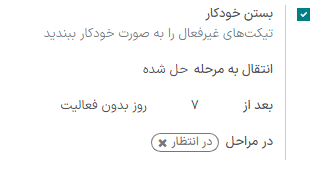
To have Odoo automatically close inactive tickets, go to the desired team's settings page, by navigating to , and selecting the desired team to configure. Under the Self-Service section, enable Automatic Closing.
After ticking the box for Automatic Closing, three new fields appear beneath:
Move to Stage
After (#) days of inactivity
In Stages
If one of the team's stages is set to be folded in the Kanban view, the folded stage is the default selection in the Move to Stage field. If the team has more than one folded stage, the folded stage that occurs first in the pipeline is the default. If no stage is folded, the default selection is the last stage in the pipeline.
The After (#) days of inactivity field defaults to 7, but can be adjusted if
necessary.
هشدار
The After (#) days of inactivity field does not take the working calendar into account when tracking the amount of time a ticket has been inactive.
اگر فقط قرار است برخی از مراحل برای رهگیری روزهای غیرفعال استفاده شود، میتوان مراحل مورد نظر را به فیلد در مراحل اضافه کرد.
Example
داشبورد روند تیم با مراحل زیر ایجاد میشود:
جدیددر جریانبازخورد مشتریحل شده
Tickets may linger in the Customer Feedback stage, because once an issue is solved, customers may not respond immediately. At that point, the tickets can be closed automatically.
Tickets in the New and In Progress stages could remain inactive due to assignment or workload issues. The support team may be looking into the issue even if they are not updating the ticket directly. Closing these tickets automatically would result in issues going unsolved.
Therefore, the Automatic Closing settings for this team would be configured as below:
بستن خودکار: تیک خورده
انتقال به مرحله:
حل شدهپس از
7روز عدم فعالیتدر مراحل:
بازخورد مشتری
اختیار مشتریان در بستن تیکتهای خود
فعال کردن تنظیم بستن توسط مشتریان به مشتریان این امکان را میدهد که وقتی تشخیص دادند مشکلشان حل شده است، تیکتهای خود را ببندند.
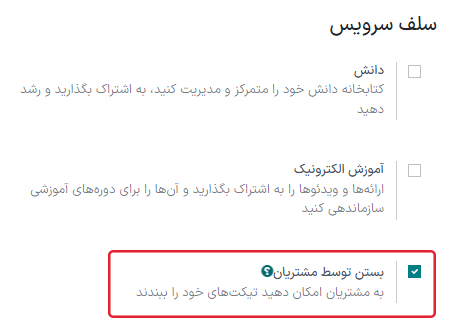
To allow customers to close their own tickets, start by navigating to , and click on a team to open the team's settings page. Next, scroll to the Self-Service section, and check the box for Closure by Customers.
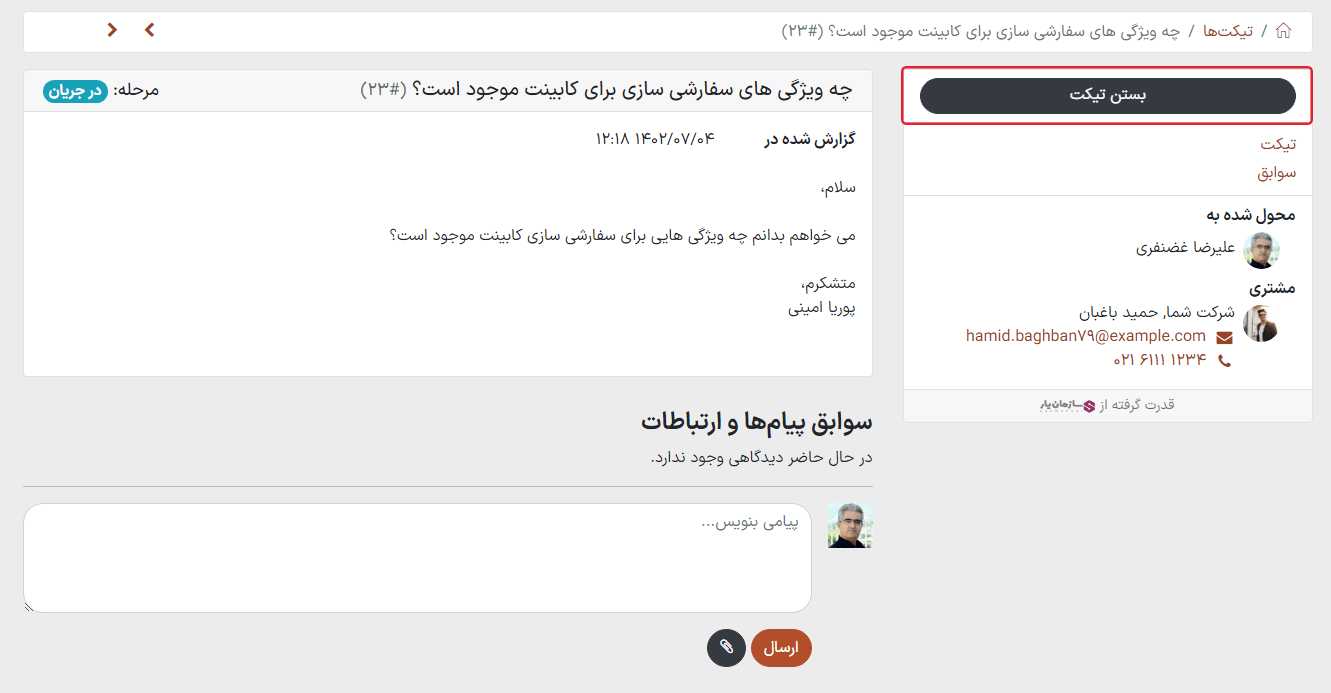
Once the ticket closing settings are enabled, a Close Ticket button is available for customers when they view their ticket through the customer portal.
توجه
Customers are able to view their tickets by clicking the View the ticket link they receive by email. The link is included in the Helpdesk: Ticket Received template, which is added to the first stage of a team by default. This link does not require a customer to have access to the portal to view or respond to their ticket.
Customers with access to the portal can view their tickets under .