کارمندان جدید
When a new employee is hired, the first step is to create a new employee record. This record is a centralized place where all important information about the employee is stored, including general information, job history and skills, various work information, personal details, documents, and more.
برای شروع، برنامه را باز کنید، سپس روی دکمه جدید در گوشه بالا و راست کلیک کنید. با این کار یک فرم کارمند خالی نمایش داده میشود.
اقدام به پر کردن اطلاعات مورد نیاز، به همراه هرگونه جزئیات اضافی کنید.
توجه
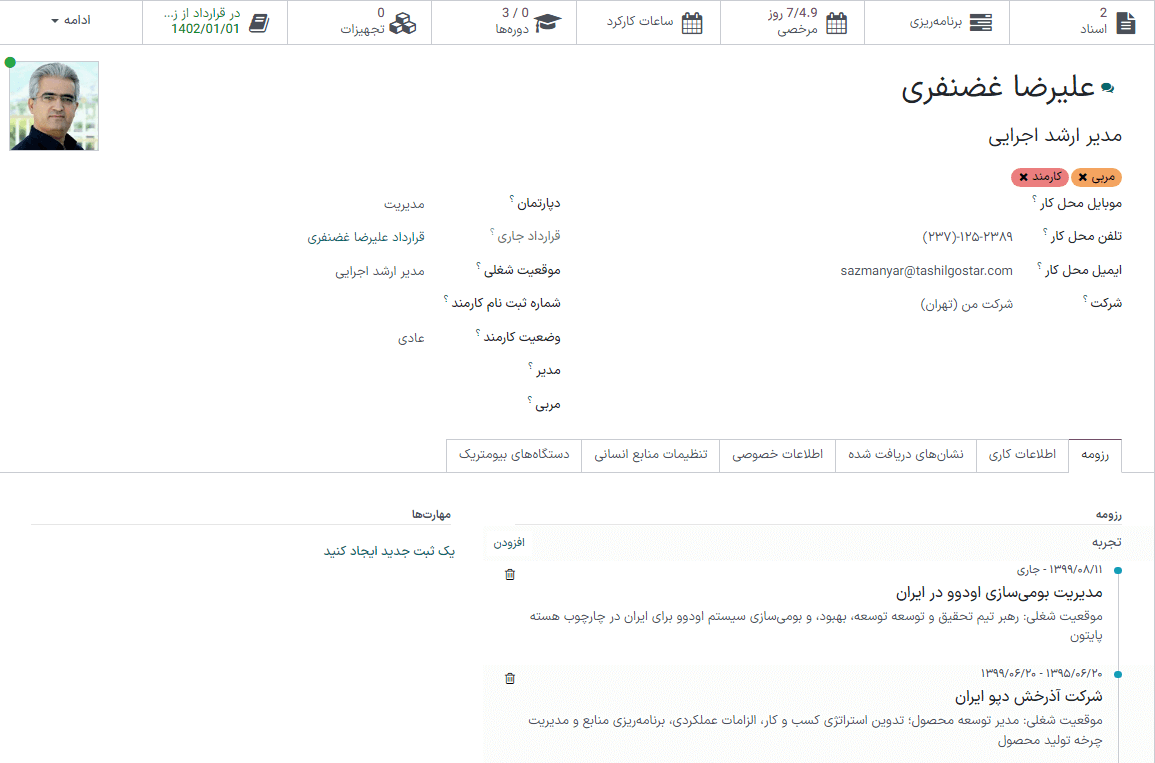
The current company phone number and name are populated in the Work Phone and Company fields. If the Appraisals application is installed, the Next Appraisal Date field is populated with a date six months from the current date.
اطلاعات عمومی
The employee form automatically saves as data is entered. However, the form can be saved manually at any time by clicking the Save manually option, represented by a (cloud with an upwards arrow) icon.
فیلدهای اجباری
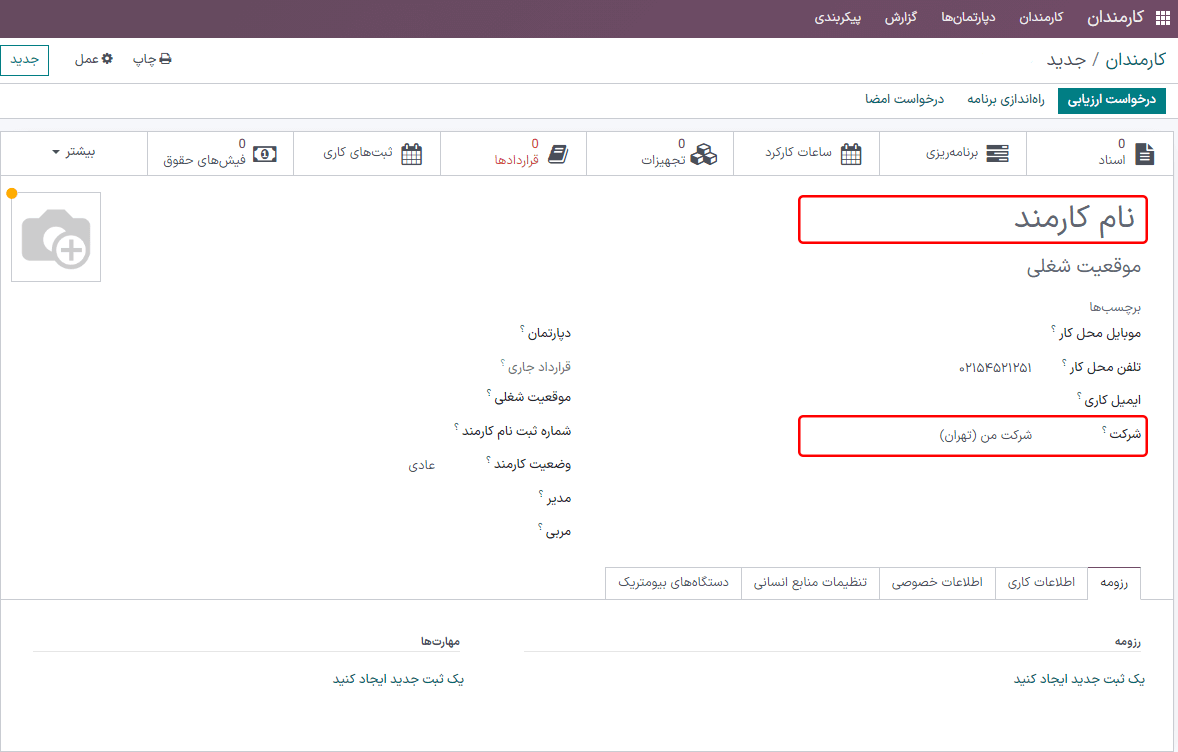
Employee's Name: enter the employee's name.
Company: from the drop-down menu in this field, select the company the new employee was hired by, or create a new company by typing the name in the field, and clicking Create or Create and edit... from the mini drop-down menu that appears.
فیلدهای اختیاری
Photo: in the top-right image box of the employee form, click on the ✏️ (pencil) edit icon to select a photo to upload.
Job Position: enter the employee's job title under their name, or select it from the Job Position field drop-down menu below to have this top field auto-populate. The Job Position field under the employee name can be modified, and does not need to match the selection made in the Job Position drop-down menu in the field below.
Example
توصیه میشود موقعیتهای شغلی مطابقت داشته باشند، ولی توضیحات تایپ شده در این فیلد میتواند در صورت تمایل حاوی اطلاعات دقیقتری نسبت به موقعیت شغلی انتخاب شده از منوی کشویی باشد.
For instance, if someone is hired for a sales representative position configured as Sales Representative in the Recruitment app, that can be selected in the drop-down Job Position field.
In the typed-in Job Position field beneath the Employee's Name field, the position could be more specific, such as
Sales Representative - Subscriptionsif the employee is focused solely on subscription sales.
Tags: select a tag from the drop-down menu to add relevant tags to the employee. Any tag can be created in this field by typing it in. Once created, the new tag is available for all employee records. There is no limit to the amount of tags that can be added.
Work Contact Information: enter the employee's Work Mobile, Work Phone, Work Email, and/or Company name, if not already auto-populated.
دپارتمان: دپارتمان کارمند را از منوی کشویی انتخاب کنید.
Job Position: select the employee's job position from the drop-down menu. Once a selection is made, the Job Position field beneath the Employee's Name field automatically updates to reflect the currently selected job position. These positions are from the Recruitment application, and reflect the currently configured job positions.
مدیر: مدیر کارمند را از منوی کشویی انتخاب کنید.
مربی: مربی کارمند را از منوی کشویی انتخاب کنید.
Next Appraisal Date: this field is only visible if the Appraisals application is installed. The date automatically populates with a date that is computed according to the settings configured in the Appraisals application. This date can be modified using the calendar selector.
توجه
پس از انتخاب مدیر، اگر فیلد مربی خالی باشد، مدیر انتخابی به صورت خودکار در فیلد مربی نیز وارد میشود.
نکته
برای ویرایش دپارتمان، مدیر، مربی، یا شرکت، لینک داخلی فیلد مربوطه را کلیک کنید.با استفاده از این لینک فرم مربوطه باز شده و امکان ویرایش فراهم میشود. بعد از انجام تغییرات ذخیره کنید.
سایر تبها
تب رزومه
رزومه
سوابق کاری کارمند را در تب رزومه وارد کنید. هر سطر رزومه باید به صورت تکی وارد شود. وقتی برای اولین بار ثبت جدیدی ایجاد میشود، دکمه یک ثبت جدید ایجاد کنید را کلیک کرده و فرم ایجاد سطرهای رزومه را تکمیل کنید. بعد از اضافه شدن ثبت جدید، دکمه یک ثبت جدید ایجاد کنید جای خود را به دکمه افزودن میدهد. برای هر سطر اطلاعات زیر را وارد کنید.
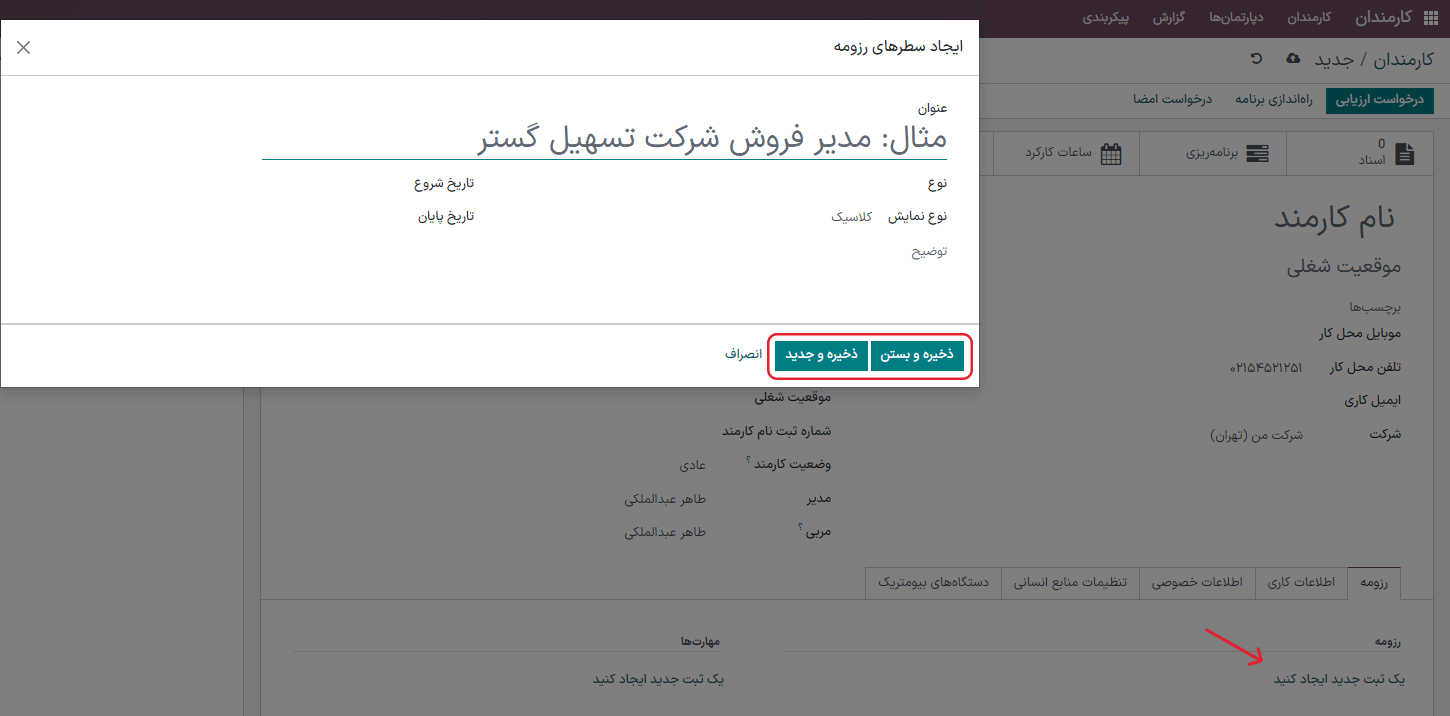
عنوان: عنوان سابقه کاری قبلی را تایپ کنید.
کارمند: کارمند را از منوی کشویی انتخاب کنید.
Type: from the drop-down menu, select either Experience, Education, Side Projects, Internal Certification, Completed Internal Training, or type in a new entry, then click Create "(Type)".
Display Type: from the drop-down menu, choose Classic for typical work experience, Certification for experience gained through a certification, or Course for non-certified classes.
Duration: enter the start and end dates for the work experience. To select a date, click the first empty field to reveal a calendar pop-up window. Proceed to use the < (left arrow) and > (right arrow) icons to scroll to the desired month, then click on the day to select it. Repeat this process to locate and select the end date. When the desired dates have been selected, click ✔️ Apply.
توضیحات: هرگونه جزئیات مرتبط را در این فیلد وارد کنید.
بعد از ورود تمام اطلاعات، اگر فقط یک ثبت وجود دارد ذخیره و بستن را کلیک کنید. ولی اگر میخواهید سطر رزومه جدیدی ایجاد کنید ذخیره و جدید را بزنید.
توجه
پس از ذخیره فرم کارمند جدید، موقعیت و شرکت فعلی به طور خودکار به تب رزومه اضافه میشود و تاریخ پایان به عنوان فعلی لیست میشود.
مهارتها
مهارتهای کارمند را میتوان در تب رزومه به همان روشی که در ردیف رزومه ایجاد میشود، وارد کرد.
In order to add a skill to an employee record, the skill types must be configured first. If no skill types are configured, a Create new Skills button appears in the Skills section of the Resumé tab. Configure the skill types before adding any skills to the employee record.
If the skill types are configured, a Pick a skill from the list button appears instead. Click the Pick a skill from the list button, and select the following information for each skill.
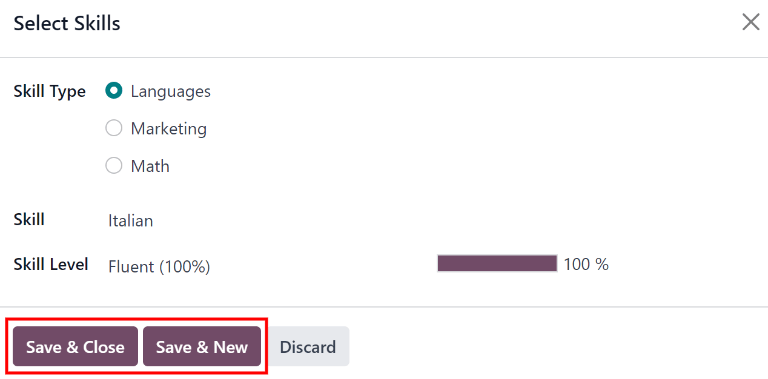
نوع مهارت: با کلیک روی دکمه رادیویی کنار نوع مهارت، یک نوع مهارت را انتخاب کنید.
Skill: after selecting a Skill Type, the corresponding skills associated with that selected Skill Type appear in a drop-down menu. For example, selecting Language as the Skill Type presents a variety of languages to select from under the Skills field. Select the appropriate pre-configured skill, or type in a new skill, then click Create "(new skill)".
Skill Level: pre-defined skill levels associated with the selected Skill Type appear in a drop-down menu. First, select a Skill Level, then the progress bar automatically displays the pre-defined progress for that specific skill level. Skill levels and progress can be modified in the Skill Level pop-up form, which is accessed via the Internal Link arrow next to Skill Level field.
اگر فقط یک مهارت برای افزودن وجود دارد، روی دکمه ذخیره و بستن کلیک کنید یا برای ذخیره داده فعلی و اضافه کردن فوری مهارت دیگر، روی دکمه ذخیره و جدید کلیک کنید.
برای حذف سطرها از تب رزومه، آیکون حذف 🗑️ (سطل زباله) را کلیک کنید. با کلیک بر روی دکمه افزودن در کنار بخش مربوطه سطر جدیدی اضافه کنید.
مهم
Only users with Officer: Manage all employees or Administrator rights for the Employees app can add or edit skills.
انواع مهارت
In order to add a skill to an employee's form, the Skill Types must be configured. Go to to view the currently configured skill types and create new skill types.
توجه
The default skill of Languages is pre-configured as a skill type, but there are no specific language skills listed within that skill type. The Languages skill type must be fully configured before it can be used.
Click New and a new Skill Type form appears. Fill out all the details for the new skill type. Repeat this for all the needed skill types.
نوع مهارت: نام نوع مهارت را وارد کنید. نوع مهارت به عنوان دسته اصلی مهارتهای خاصتر عمل میکند و باید عمومی باشد.
Skills: click Add a line, and enter the Name for the new skill, then repeat for all other needed skills.
Levels: click Add a line, and enter the Name of the level. Next, click into the Progress field, and enter a percentage (0-100) for that level. Repeat for all additional levels, as needed.
Default Level: click the toggle on the level line to set that level as the default. Typically, the lowest level is set as the default, but any level can be chosen. The toggle turns green, indicating it is the default level for the skill. Only one level can be set as the default.
Example
To add a math skill set, enter
Mathin the Name field. Next, in the Skills field, enterAlgebra,Calculus, andTrigonometry. Last, in the Levels field enterBeginner,Intermediate, andExpert, with the Progress listed as25,50, and100, respectively. Last, click Set Default on theBeginnerline to set this as the default skill level.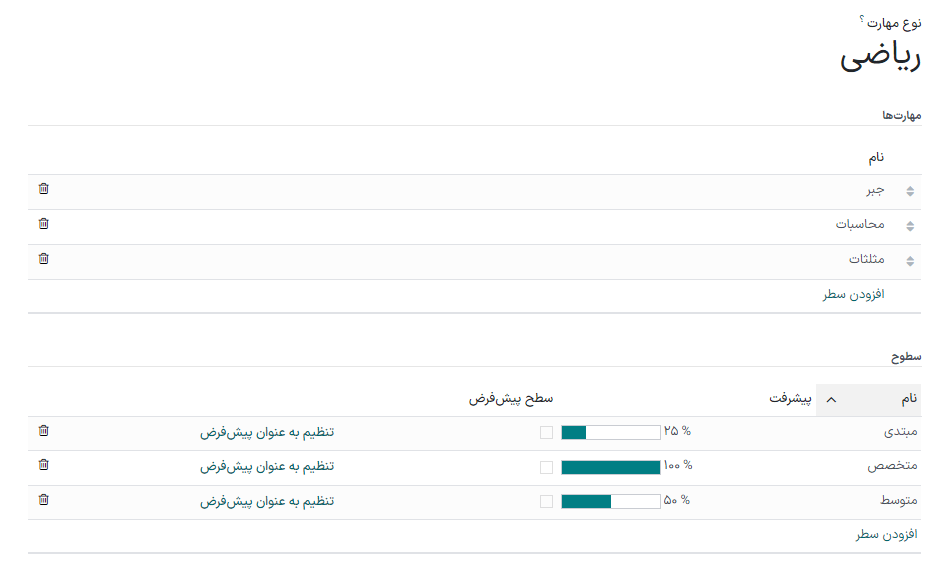
The Skill Type form automatically saves as data is entered.
نکته
Once the form is completely filled out, click the Save manually button, represented by a cloud with an upwards arrow icon at the top of the screen, and the Levels rearrange in descending order, with the highest level at the top, and the lowest at the bottom, regardless of the default level and the order they were entered.
تب اطلاعات کاری
The Work Information tab is where the employee's specific job related information is found. Their working schedule, various roles, who approves their specific requests (time off, timesheets, and expenses), their remote work schedule, and specific work location details are listed here.
Click on the Work Information tab to access this section, and enter the following information for the new employee:
Location: select the Work Address from the drop-down menu. To modify the address, hover over the first line (if there are multiple lines) of the address to reveal an Internal Link arrow. Click the Internal Link arrow to open up the company form, and make any edits.
پس از اتمام کار، از لینکهای راهنمای مسیر (breadcrumb) برای بازگشت به فرم کارمند جدید استفاده کنید.
اگر آدرس محل کار جدیدی مورد نیاز است، آدرس را با تایپ کردن آن در فیلد کنید، سپس برای اضافه کردن آدرس روی ایجاد (آدرس جدید) کلیک کنید، یا برای اضافه کردن آدرس جدید و ویرایش فرم آدرس، روی ایجاد و ویرایش... کلیک کنید.
Approvers: to see this section, the user must have either Administrator or Officer: Manage all employees rights set for the Employees application. Using the drop-down menus, select the users responsible for approving an Expense, a Time Off request, Timesheet entries, and Attendance records for the employee.
Hover over any of the selections to reveal the Internal Link arrow.
Click the Internal Link arrow to open a form with the approver's Name, Email Address, Company, Phone, Mobile, and Default Warehouse fields. These can be modified, if needed.
پس از اتمام کار، از لینکهای راهنمای مسیر (breadcrumb) برای بازگشت به فرم کارمند جدید استفاده کنید.
مهم
کاربرانی که در منوی کشویی تأییدکنندگان ظاهر میشوند باید سطح دسترسی مدیر سیستم را برای نقش منابع انسانی مربوطه داشته باشند.
To check who has these rights, go to . Then, click on an employee, and check the Human Resources section of the Access Rights tab.
برای اینکه کاربر به عنوان تأییدکننده هزینهها ظاهر شود، باید تأییدکننده تیم، تأییدکننده همه یا مدیر سیستم را برای نقش هزینهها داشته باشد.
برای اینکه کاربر به عنوان تأییدکننده مرخصی ظاهر شود، باید مسئول: مدیریت تمام درخواستها یا مدیر سیستم را برای نقش مرخصی داشته باشد.
In order for the user to appear as an approver for Timesheets, they must have either Manager, Officer:Manage all contracts, or Administrator set for the Payroll role.
Remote Work: use the drop-down menu to select the default location the employee works from each day of the week. The default options are Home, Office, or Other.
مکان جدید را میتوان در فیلد تایپ کرده و برای اضافه کردن مکان روی ایجاد (مکان جدید) کلیک کنید، یا برای اضافه کردن مکان جدید و ویرایش فرم، روی ایجاد و ویرایش... کلیک کنید.
پس از انجام ویرایشها، روی ذخیره و بستن کلیک کنید تا مکان جدید اضافه شده و فیلد را پر کند.
Leave the field blank (Unspecified) for non-working days like Saturday and Sunday.
توجه
It is also possible to add or modify work locations by navigating to . To modify a location, click on an existing location, then make any changes on the form.
برای ایجاد مکان جدید روی جدید کلیک کنید، سپس اطلاعات زیر را در فرم وارد کنید. تمام فیلدها الزامی هستند.
محل کار: نام مکان را وارد کنید. این نام میتواند عمومی یا خاص باشد، به عنوان مثال:
خانهیاساختمان ۱، طبقه دوم.آدرس محل کار: با استفاده از منوی کشویی، آدرس مکان را انتخاب کنید.
Cover Image: click on the icon to select it for the Cover Image. Options are a house icon, an office building icon, and a GPS location marker icon.
Company: using the drop-down menu, select the company the location applies to. The current company populates this field, by default.

Schedule: select the Working Hours and Timezone for the employee. The Internal Link arrow opens a detailed view of the specific daily working hours. Working hours can be modified or deleted here.
توجه
ساعات کاری به برنامههای کاری شرکت مرتبط هستند و کارمند نمیتواند ساعات کاری خارج از برنامه کاری یک شرکت داشته باشد.
Each individual working schedule is company-specific. So, for multi-company databases, each company needs to have its own working schedules set.
اگر ساعات کاری کارمند به عنوان برنامه کاری شرکت پیکربندی نشده باشد، میتوان برنامههای کاری جدید اضافه کرد یا برنامههای کاری موجود را تغییر داد.
Working hours can be modified in the Payroll application, where they are referred to as Working Schedules.
For more information on how to create or modify Working Schedules in the Payroll application, refer to the حقوق و دستمزد documentation.
Planning: select a role from the drop-down menu for both the Roles and the Default Role fields. If the Default Role is selected as a role, it is automatically added to the list of Roles.
مهم
کاربرانی که در منوی کشویی تأییدکنندگان ظاهر میشوند باید سطح دسترسی مدیر سیستم را برای نقش منابع انسانی مربوطه داشته باشند.
To check who has these rights, go to . Click on an employee, and check the Human Resources section of the Access Rights tab.
برای اینکه کاربر به عنوان تأییدکننده هزینهها ظاهر شود، باید تأییدکننده تیم، تأییدکننده همه یا مدیر سیستم را برای نقش هزینهها داشته باشد.
In order for the user to appear as an approver for Time Off, they must have either Officer or Administrator set for the Time Off role.
In order for the user to appear as an approver for Timesheets, they must have either Manager, Officer, or Administrator set for the Payroll role.
توجه
Working Hours are related to a company's working times, and an employee cannot have working hours that are outside of a company's working times.
Each individual working time is company-specific. So, for multi-company databases, each company must have its own working hours set.
If an employee's working hours are not configured as a working time for the company, new working times can be added, or existing working times can be modified.
To add or modify a working time, go to the . Then, either add a new working time by clicking New, or edit an existing one by selecting a Working Time from the list to modify it.
Refer to the Working schedules section of the payroll documentation for specific details on creating and editing working schedules.
After the new working time is created, or an existing one is modified, the Working Hours can be set on the employee form. In the Schedule section of the Work Information tab, select the employee's working hours using the drop-down menu.
تب اطلاعات خصوصی
برای ایجاد کارمند، اطلاعاتی که در تب اطلاعات خصوصی وارد میشوند ضروری نیست، ولی برخی از آنها ممکن است برای دپارتمان حقوق و دستمزد شرکت مهم باشد. برای پردازش صحیح فیشهای حقوقی و اطمینان از اینکه تمام کسورات محاسبه شدهاند، اطلاعات شخصی کارمند باید وارد شوند.
Here, the employee's Private Contact, Family Status, Emergency contact, Education, Work Permit, and Citizenship information is entered. Fields are entered either using a drop-down menu, ticking a checkbox, or typing in the information.
Private Contact: enter the Private Address, Email, and Phone for the employee. Then, enter the employee's Bank Account Number using the drop-down menu.
If the bank is not already configured (the typical situation when creating a new employee), enter the bank account number, and click Create and edit... A Create Bank Account Number form loads. Fill in the necessary information, then click Save & Close.
Next, select the employee's preferred Language from the drop-down menu. Then enter the Home-Work Distance in the field. This field is only necessary if the employee is receiving any type of commuter benefits.
Lastly, enter the employee's license plate information in the Private Car Plate field.
Family Status: select the current Marital Status using the drop-down menu, either Single, Married, Legal Cohabitant, Widower, or Divorced. If the employee has any dependent children, enter the Number of Dependent Children in the field.
Emergency: type in the Contact Name and Contact Phone number of the employee's emergency contact in the respective fields.
Education: select the highest level of education completed by the employee from the Certificate Level drop-down menu. Default options include Graduate, Bachelor, Master, Doctor, or Other.
Type in the Field of Study, and the name of the School in the respective fields.
Work Permit: if the employee has a work permit, enter the information in this section. Type in the Visa No (visa number), and/or Work Permit No (work permit number) in the corresponding fields.
Using the calendar selector, select the Visa Expiration Date, and/or the Work Permit Expiration Date, to enter the expiration date(s).
If available, upload a digital copy of the Work Permit document. Click Upload your file, navigate to the work permit file in the file explorer, and click Open.
Citizenship: this section contains all the information relevant to the citizenship of the employee. Some fields use a drop-down menu, as the Nationality (Country), Gender, and Country of Birth fields do.
The Date of Birth uses a calendar selector to select the date. First, click on the name of the month, then the year, to access the year ranges. Use the < (left) and > (right) arrow icons, navigate to the correct year range, and click on the year. Next, click on the month. Last, click on the day to select the date.
Type in the information for the Identification No (identification number), Passport No (passport number), and Place of Birth fields.
Lastly, if the employee is not a resident of the country they are working in, activate the checkbox next to the Non-resident field.
توجه
بسته به تنظیمات بومیسازی، ممکن است فیلدهای دیگری نیز وجود داشته باشند. به عنوان مثال، برای ایالات متحده، یک فیلد شماره SSN (شماره تأمین اجتماعی) وجود دارد.
HR settings tab
در این تب فیلدهای مختلف وجود دارد که اغلب با توجه به کشور محل فعالیت شرکت و موقعیتهای مکانی مختلف پیکربندی میشوند. برخی از فیلدها برای همه قابل نمایش و پیکربندی است.
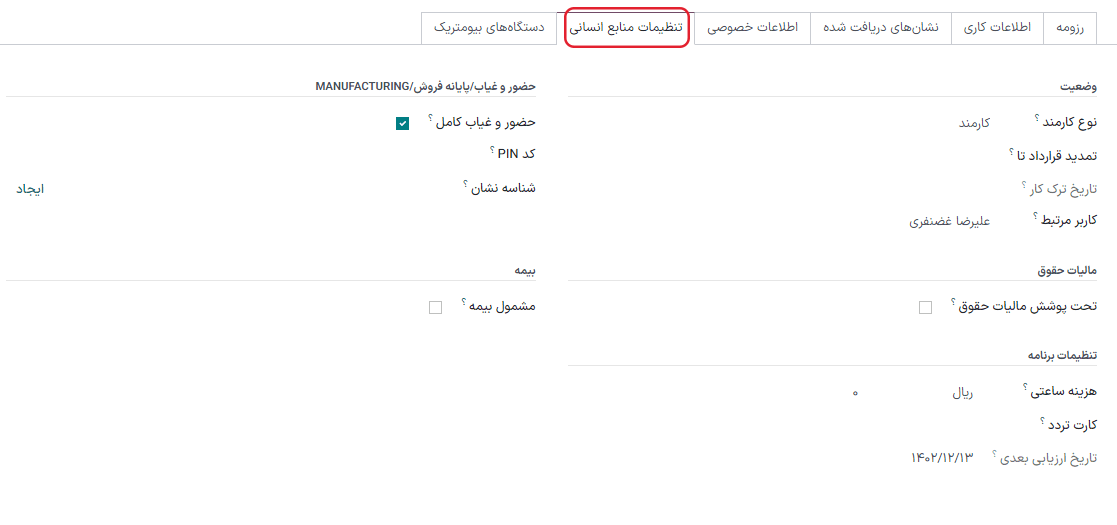
Status: select an Employee Type and, if applicable, a Related User, with the drop-down menus. The Employee Type options include Employee, Student, Trainee, Contractor, or Freelancer.
مهم
Employees do not also need to be users. Employees do not count towards the Odoo subscription billing, while Users do count towards billing. If the new employee should also be a user, the user must be created.
After the employee is created, click the ⚙️ (gear) icon, then click Create User. A Create User form appears.
Type in the Name and Email Address. Next, select the Company from the drop-down menu.
Then, enter the Phone and Mobile numbers in the respective fields.
If a photo is available, click the Edit icon (which appears as a ✏️ (pencil) icon) in the lower-left corner of the image box, which is located in the top-right corner of the form.
A file explorer pops up. Navigate to the file, then click Open to select it. Finally, click Save after all the information is entered, and the employee record is automatically updated with the newly-created user populating the Related User field.
کاربران را میتوان به صورت دستی نیز ایجاد کرد. برای اطلاعات بیشتر در مورد نحوه اضافه کردن دستی کاربر، به راهنمای مربوطه کاربران مراجعه کنید.
Attendance/Point of Sale/Manufacturing: the employee's PIN Code and Badge ID can be entered here, if the employee needs/has one. Click Generate next to the Badge ID to create a badge ID.
The PIN Code is used to sign in and out of the Attendance app kiosk, and a POS system.
Payroll: if applicable, enter the Registration Number of the Employee in this section.
Depending on the localization setting, the other items that appear in this field vary based on location. In addition, other sections may appear in this tab based on location. It is recommended to check with the payroll and/or accounting departments to ensure this section, as well as any other sections relating to payroll that may appear, are filled in correctly.
Application Settings: enter the employee's Billing Time Target for the billing rate leader board in the Timesheets application. Next, enter the Hourly Cost in a XX.XX format. This is factored in when the employee is working at a work center.
If applicable, enter the Fleet Mobility Card number.
توجه
Manufacturing costs are added to the costs for producing a product, if the value of the manufactured product is not a fixed amount. This cost does not affect the Payroll application.
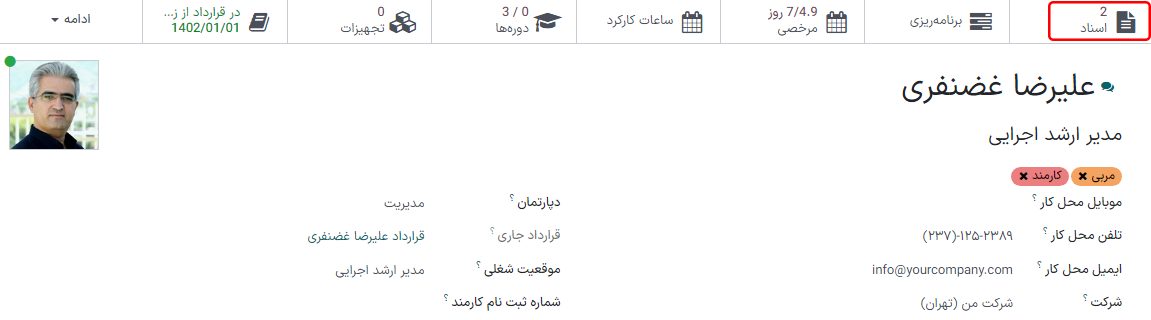
اسناد
All employee-related documents are stored in the Documents app. The number of associated documents is displayed in the Documents smart button above the employee record. Click on the smart button to access all documents.
Refer to documentation on the Documents app for more information.