
مدیریت فرصتهای از دسترفته
Not every opportunity results in a successful sale. To keep the pipeline up-to-date, lost opportunities need to be identified. Specifying why an opportunity was lost provides additional insight that can prove useful for future opportunities.
علامتگذاری فرصت به عنوان از دست رفته
To mark an opportunity as lost, first open the , and select an opportunity from the pipeline, by clicking on its corresponding Kanban card. Doing so reveals that opportunity's detail form.
سپس، روی لاخته در بالای فرم جزئیات فرصت کلیک کنید.

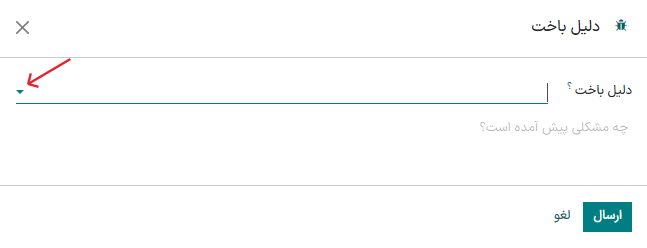
This opens the Mark Lost pop-up window. From the Lost Reason drop-down menu, choose an existing lost reason. If no applicable reason is available, create a new one by entering it into the Lost Reason field, and clicking Create.
یادداشتها و نظرات اضافی را میتوان زیر دلیل لاخت در قسمت مشخص شده یادداشت پایانی اضافه کرد.
نکته
دلیل باخت و یادداشت پایانی در پنجره علامتگذاری به عنوان باخته الزامی نیستند. ولی توصیه میشود به منظور قابلیت ردیابی این اطلاعات، پاسخگویی و اهداف گزارشدهی درج کنید.
وقتی تمام اطلاعات مورد نظر در پنجره بازشو علامتگذاری به عنوان از دست رفته وارد شد، روی علامتگذاری به عنوان از دست رفته کلیک کنید.
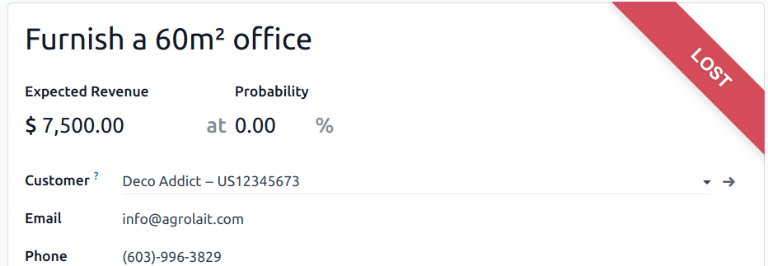
پس از کلیک روی علامت گذاری به عنوان باخته، یک بنر قرمز باخته به گوشه چپ و بالای فرصت اضافه میشود.
توجه
برای علامت گذاری یک فرصت غیرفعال (بایگانی شده) به عنوان از دست رفته، احتمال را روی 0 درصد تنظیم کنید.
ایجاد و ویرایش دلایل باخت
برای ایجاد دلیل جدید، یا ویرایش یکی از دلایل موجود، وارد مسیر شوید.
To edit an existing lost reason:
Click on the reason to be edited to highlight it.
Change the selected lost reason by editing the Description field.
When finished, click Save in the upper-left corner.
To create a new lost reason:
Click New in the upper-left corner of the Lost Reasons page.
In the new blank line, click in the Description field, then type the new lost reason.
When finished, click Save.
مشاهده فرصتهای از دست رفته
To retrieve lost opportunities in Odoo CRM, open the . On the main Pipeline dashboard, click into the Search... bar at the top of the page, and remove all of the default filters.
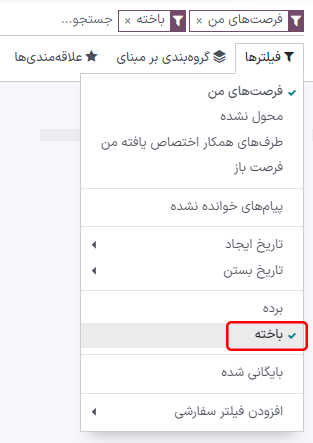
Open the Filters drop-down menu, by clicking the 🔻(triangle pointed down) icon to the right of the Search... bar to open the drop-down menu containing Filters, Group By, and Favorites options, designated into respective columns.
گزینه باخته را از بخش فیلترها انتخاب کنید. پس از انتخاب باخته، فقط فرصتهای علامتگذاری شده به عنوان «باخته» در صفحه داشبورد فرصتها ظاهر میشوند.
مرتبسازی فرصتها بر اساس دلیل باخت
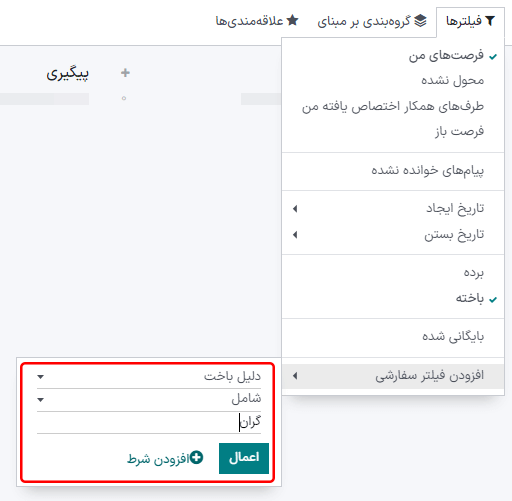
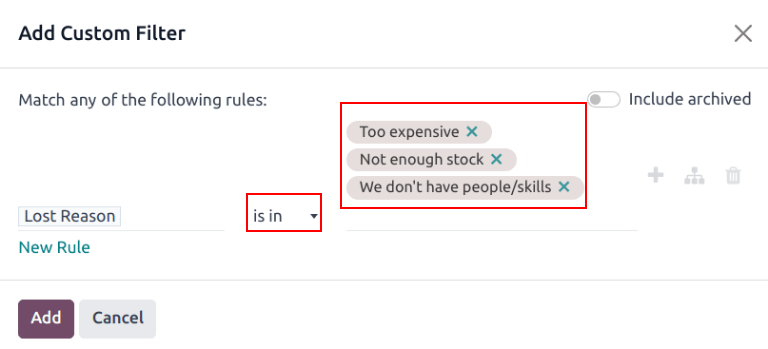
To filter opportunities by a specific lost reason, click the 🔻(triangle pointed down) icon to the right of the Search... bar again to open the drop-down menu. In addition to the Lost filter, under the Filters column, click Add Custom Filter, which opens an Add Custom Filter pop-up window.
On the Add Custom Filter pop-up window, click in the first field, and type Lost Reason
in the Search... bar, or scroll to search through the list to locate it. Then, click
into the next field, and select = from the drop-down menu. Click into the third field,
and select a lost reason from the drop-down menu. Finally, click Add.
نکته
برای مشاهده نتایج برای بیش از یک دلیل باخت، عملگر است در را در قسمت دوم فیلتر سفارشی انتخاب کنید. انتخاب این عملگر، انتخاب چند دلیل باخت را در قسمت سوم امکانپذیر میکند.
بازگردانی فرصتهای از دست رفته
To restore a lost opportunity, open the to reveal the Pipeline dashboard. Or, navigate to . From here, click the 🔻(triangle pointed down) icon to the right of the Search... bar to open the drop-down menu that contains Filters, Group By, and Favorites columns.
در ستون فیلترها، باخته را انتخاب کنید. با این کار همه فرصتهای از دست رفته در صفحه داشبورد فرصتها نمایش داده میشود.
نکته
To see all opportunities in the database, remove the default My Pipeline filter from the Search... bar.
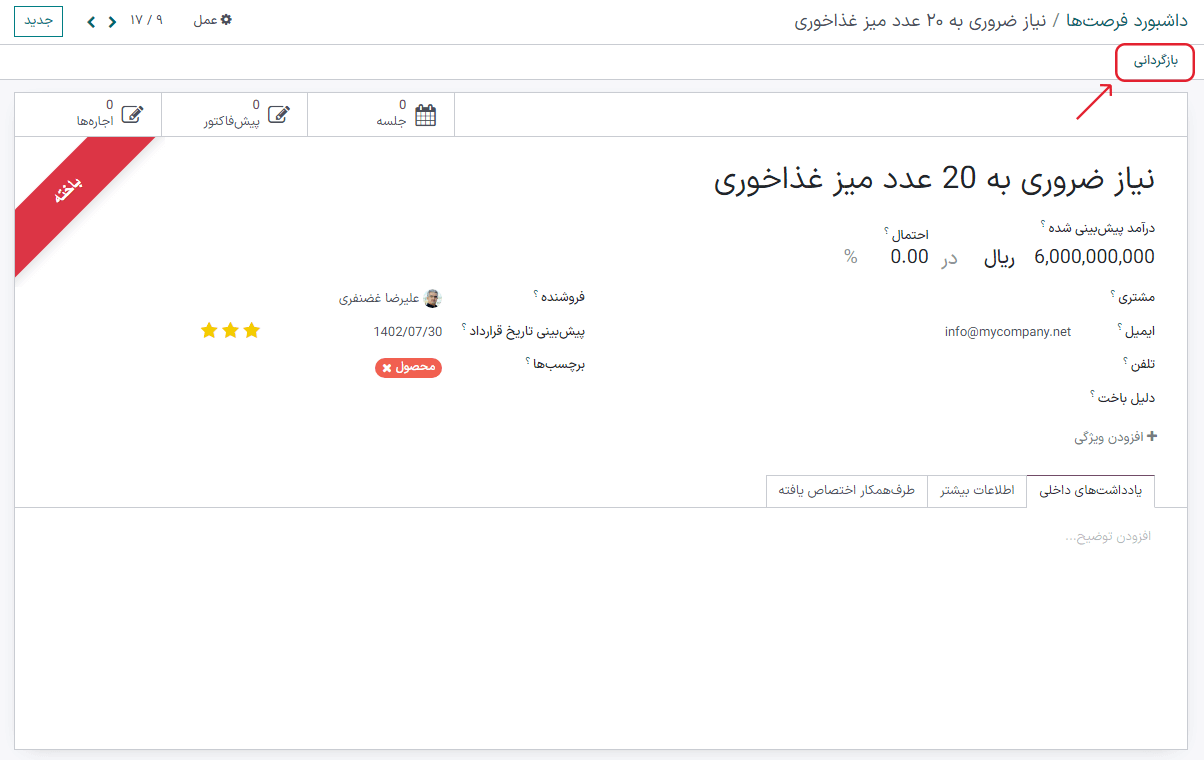
Then, click on the Kanban card of the desired lost opportunity to restore, which opens that opportunity's detail form.
از فرم جزئیات فرصت از دست رفته، روی بازگردانی در گوشه بالا و راست کلیک کنید. با این کار بنر قرمز باخته از فرم فرصت حذف میشود و نشان میدهد که فرصت بازیابی شده است.
بازگردانی یکباره فرصتهای از دست رفته
برای بازگردانی دستهای چند فرصت از دست رفته، وارد داشبورد اصلی فرصتها شوید، فیلترها را باز کرده و گزینه باخته را کلیک کنید.
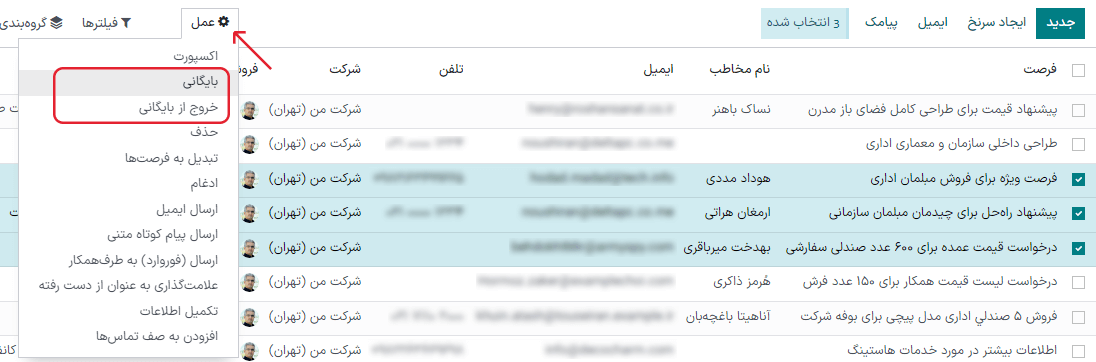
Next, select the list view option, represented by the ≣ (list) icon in the upper-right corner. Doing so places all the opportunities from the Pipeline page in a list view. With the list view chosen, select the checkbox to the left of each opportunity to be restored.
Once the desired opportunities have been selected, click the ⚙️ Actions drop-down menu at the top of the Pipeline page. From the ⚙️ Actions drop-down menu, select Unarchive.
با این کار، فرصتهای انتخاب شده از صفحه داشبورد فرصتها حذف میشوند، زیرا دیگر با معیارهای فیلتر باخته مطابقت ندارند. فیلتر باخته را از نوار جستجو حذف کنید تا فرصتهای بازیابی شده جدید نمایش داده شوند.
مدیریت سرنخهای از دست رفته
If Leads are enabled on a database, they can be marked as lost in the same manner as opportunities. Leads use the same lost reasons as opportunities.
توجه
To enable leads, navigate to and check the Leads checkbox. Then, click Save. This adds a new Leads menu to the header menu bar at the top of the page.
علامتگذاری سرنخ به عنوان باخته (از دست رفته)
To mark a lead as lost, navigate to , and select a lead from the list. Doing so reveals that lead's detail form.
دکمه باخته را در بالای فرم جزئیات سرنخ کلیک کنید.
This opens the Mark Lost pop-up window. From the Lost Reason drop-down menu, choose an existing lost reason. If no applicable reason is available, create a new one by entering it into the Lost Reason field, and clicking Create.
یادداشتها و نظرات اضافی را میتوان در زیر دلیل باخت تعیین شده در قسمت یادداشت پایانی اضافه کرد.
وقتی تمام اطلاعات مورد نظر در پنجره بازشو علامتگذاری به عنوان از دست رفته وارد شد، روی علامتگذاری به عنوان از دست رفته کلیک کنید.
بازیابی سرنخهای از دست رفته
To restore a lost lead, navigate to , then click the 🔻 (triangle pointed down) icon to the right of the Search... bar to open the drop-down menu that contains the Filters, Group By, and Favorites columns.
در ستون فیلترها، باخته را انتخاب کنید. با این کار همه سرنخهای از دست رفته در صفحه سرنخها نمایش داده میشوند.
سپس، روی سرنخ از دست رفته مورد نظر برای بازیابی کلیک کنید، که فرم جزئیات آن سرنخ را باز میکند.
در فرم جزئیات فرصت از دست رفته، در گوشه بالا و راست دکمه بازگردانی را کلیک کنید. با این کار بنر باخته از فرم سرنخ حذف میشود، که نشان میدهد سرنخ بازگردانی شده است.
بازیابی همزمان چند سرنخ
برای بازیابی همزمان چند سرنخ، به بروید، منوی کشویی فیلترها را باز کنید و گزینه باخته را انتخاب کنید. کادر سمت راست هر سرنخ برای بازیابی را انتخاب کنید.
Once the desired leads have been selected, click the ⚙️ Actions drop-down menu at the top of the Leads page. From the ⚙️ Actions drop-down menu, select Unarchive.
Doing so removes those selected leads from the Leads page because they no longer fit the Lost filter criteria. Delete the Lost filter from the Search... bar to reveal these newly-restored leads.
همچنین ملاحظه نمائید