دپارتمانها
All employees in the Employees app fall under specific departments within a company.
ایجاد دپارتمانهای جدید
To make a new department, navigate to , then click New in the top-left to reveal a blank department form. Fill out the following information on the department form:
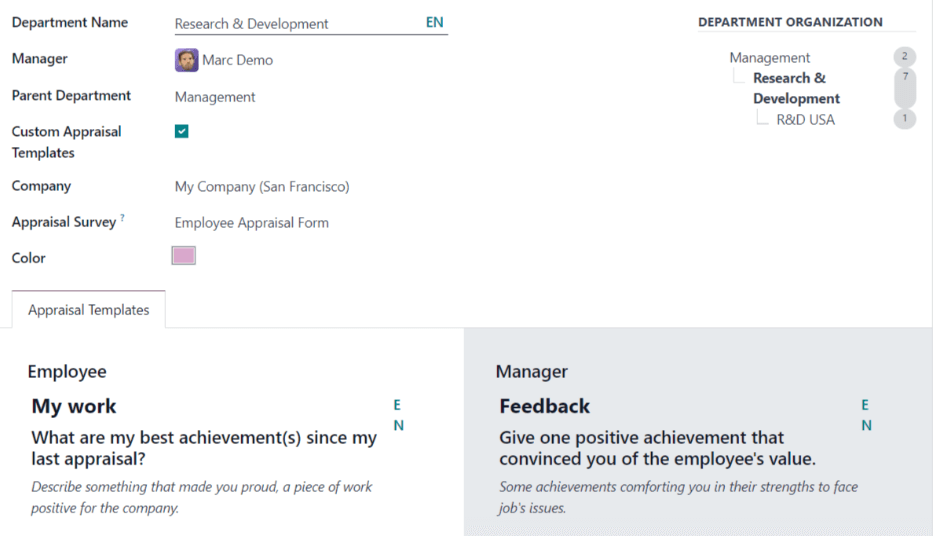
نام دپارتمان: نامی برای دپارتمان وارد کنید.
مدیر: با استفاده از منوی کشویی، مدیر دپارتمان را انتخاب کنید.
دپارتمان والد: اگر دپارتمان جدید در دپارتمان دیگری قرار دارد (دارای دپارتمان والد است)، دپارتمان والد را با استفاده از منوی کشویی انتخاب کنید.
Custom Appraisal Templates: if employees in this department require a specific appraisal form that is different from the default appraisal form, tick the checkbox. If this option is activated, an Appraisal Templates tab appears below the form. This field only appears if the Appraisals app is installed.
Company: using the drop-down menu, select the company the department is part of.
Appraisal Survey: using the drop-down menu, select the default survey to use for the department when requesting feedback from employees. This field only appears if the Appraisals app is installed, and the 360 Feedback option is enabled in the settings.
Color: select a color for the department. Click the default white color box to display all the color options. Click on a color to select it.
Appraisal Templates tab: this tab only appears if the Custom Appraisal Templates options is activated on the form. Make any desired edits to the appraisal form. The appraisal form is used for appraisals for all employees within this department.
After the form is completed, click the :icon:`fa-cloud-upload` (cloud upload) icon to manually save the changes. When saved, a Department Organization chart appears in the top-right of the department card.
توجه
فرم در حین ورود دادهها به طور خودکار ذخیره میشود، با این حال نمودار سازمان دپارتمان تا زمانی که فرم به صورت دستی ذخیره نشود، ظاهر نمیشود. اگر فرم ذخیره نشود، نمودار سازمان دپارتمان هنگام باز کردن کارت دپارتمان از داشبورد دپارتمانها قابل مشاهده است.
همچنین ملاحظه نمائید
Refer to the ارزیابیها documentation for more information.
داشبورد دپارتمانها
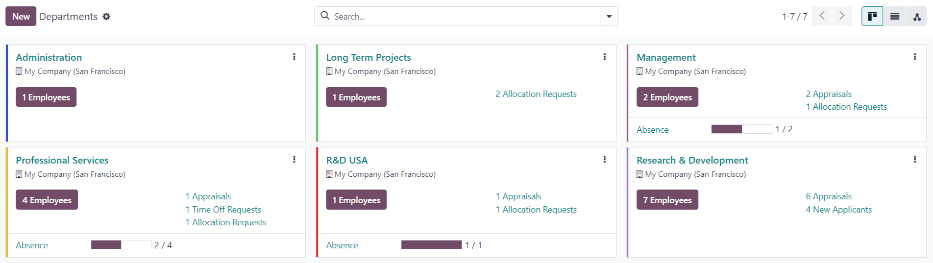
To view the currently configured departments, navigate to . All departments appear in a Kanban view, by default, and are listed in alphabetical order.
نمای کانبان
Each department has its own Kanban card on the main Departments :icon:`oi-view-kanban` (Kanban) dashboard view, that can display the following information:
Department name: the name of the department.
Company: the company the department is part of.
کارمندان: تعداد کارمندان در دپارتمان.
ارزیابیها: تعداد ارزیابیهای برنامهریزی شده برای کارمندان در دپارتمان.
درخواستهای مرخصی: تعداد درخواستهای مرخصی تأیید نشده برای کارمندان در دپارتمان در انتظار تأیید. این گزینه فقط در صورتی ظاهر میشود که درخواستی برای تأیید وجود داشته باشد.
درخواستهای تخصیص: تعداد درخواستهای تخصیص تأیید نشده برای کارمندان در دپارتمان در انتظار تأیید. این گزینه فقط در صورتی ظاهر میشود که درخواستی برای تأیید وجود داشته باشد.
New Applicants: the number of new applicants for a position in this department. This only appears if there are new applicants.
گزارشهای هزینه: تعداد کارمندان در دپارتمان با گزارشهای هزینه باز برای تأیید. این گزینه فقط در صورتی ظاهر میشود که گزارش هزینهای در انتظار تأیید باشد.
Absence: the number of absences for the current day.
نوار رنگی: رنگ انتخاب شده برای دپارتمان به شکل نوار عمودی در سمت راست کارت دپارتمان ظاهر میشود.
توجه
Click on an alert in a department card, such as Time Off Requests, to reveal a list view of the requests to approve. This list includes all open requests to approve, not just from the specific department.
The default view for the Departments dashboard is a Kanban view. It is possible to view the departments in two other forms: a list view and a hierarchy view.
نمای لیست
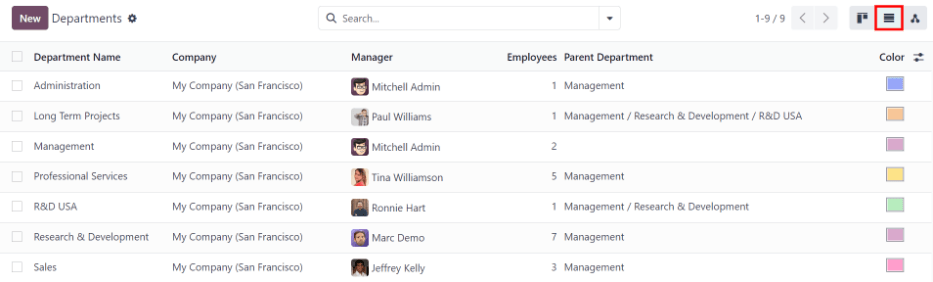
برای مشاهده دپارتمانها در نمای لیستی، روی آیکون :icon:`fa-align-justify` (لیست) در گوشه بالا و چپ کلیک کنید. دپارتمانها در نمای لیستی ظاهر میشوند که نام دپارتمان، شرکت، مدیر، کارمندان، دپارتمان والد و رنگ را برای هر دپارتمان نمایش میدهد.
دپارتمانها به طور پیشفرض بر اساس نام دپارتمان به ترتیب حروف الفبا مرتب شدهاند.
نکته
When in list view, departments can be managed in batch by selecting one or multiple record's checkbox, then select the :icon:`fa-cog` Actions button to reveal a drop-down menu of actions.
نمای سلسله مراتبی
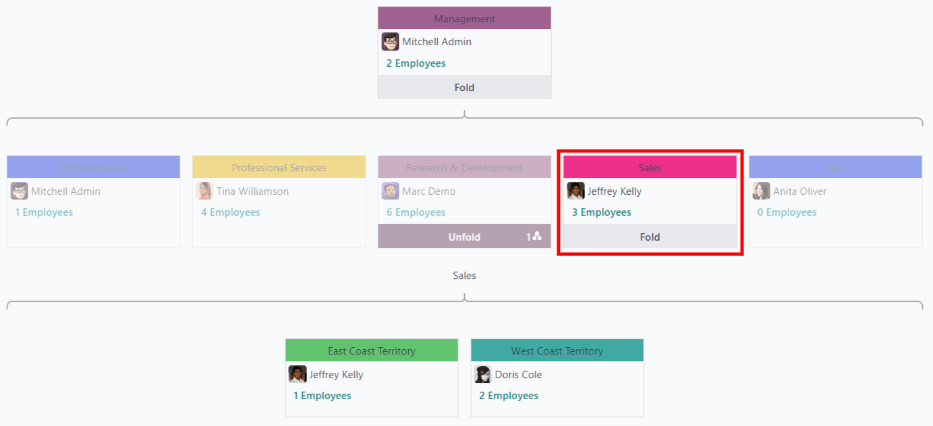
To view the departments in a hierarchy view, click the :icon:`fa-share-alt fa-rotate-90` (hierarchy) icon in the top-right corner. The departments appear in an organizational chart format, with the highest-level department at the top (typically Management), and all other departments beneath it. All child departments of the first-level child departments are folded.
Each department card displays the Department Name, the Manager (and their profile image), the Number of Employees in the department, and the ability to expand the department (Unfold) if there are child departments beneath it.
برای گسترش کارت دپارتمان، روی دکمه باز کردن کلیک کنید. پس از گسترش، دکمه باز کردن به دکمه جمع کردن تغییر میکند. برای جمع کردن دپارتمان، روی دکمه جمع کردن کلیک کنید. در هر زمان، فقط یک دپارتمان در هر ردیف میتواند باز شود.
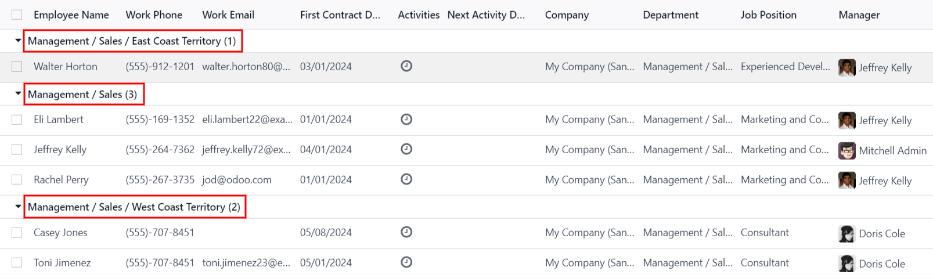
Click anywhere on a department card to open the department form. Click the (#) Employees smart button to view a list of all the employees in that department, including all employees in the child departments beneath it, organized by individual department.
Example
In the hierarchy view, if the (2) Employees button on the Management card is clicked (the highest-level department card), all employees appear in a list view, grouped by department. This is because all departments are children of the Management department.
If the (3) Employees button in the Sales department card is clicked, the employees from the Sales department, as well as its two child departments (East Coast Territory and West Coat Territory), appear in the list.