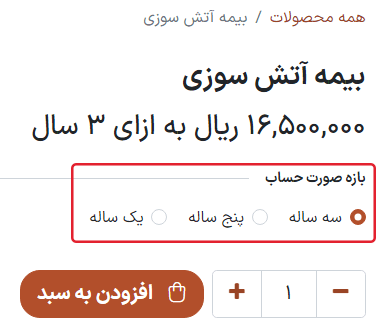
اشتراکها در فروشگاه تجارت الکترونیکی
محصولات اشتراکی را میتوان مانند یک محصول عادی در فروشگاه تجارت الکترونیکی سازمانیار فروخت.
However, by default, the eCommerce product page only displays the shortest recurrence period listed in the Recurring Prices tab of the product form.
For example, if a subscription product has monthly and annaul recurrence periods configured, then only the monthly price appears on the eCommerce page for that product, by default.
برای اضافه کردن دورههای تکرار بیشتر به صفحه محصول فروشگاه، یک گونه محصول به ازای هر دوره تکرار ایجاد کنید.
همچنین ملاحظه نمائید
ایجاد دورههای تکرار و تنظیم گونه محصول
To set up each recurrence period as a product variant, go to , and select a product. In the Attributes & Variants tab, click Add a line.
Then proceed to create an Attribute called Billing Period (or something similar), by
typing in the name, and clicking Create from the mini drop-down menu that appears. This
attribute name appears as option heading on the product page of the eCommerce shop.
Next, create Values that correspond to the recurrence periods that are configured in the Recurring Prices tab of the product form.
To do that, type in the name of the recurrence period in the Values column, on the same Attribute line, in the Attributes & Variants tab. Then, click Create from the mini drop-down menu that appears.
These value names appear as selectable options on the product page of the eCommerce shop.
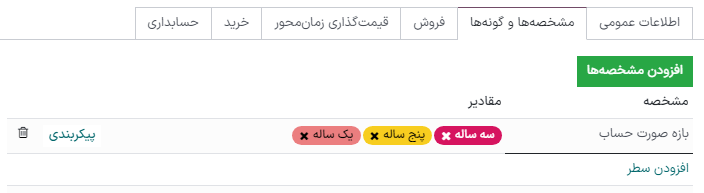
With those configurations in place and saved, a Product Variants column appears in the Recurring Prices tab. Proceed to assign the different Product Variants to their corresponding recurrence Period and Price.
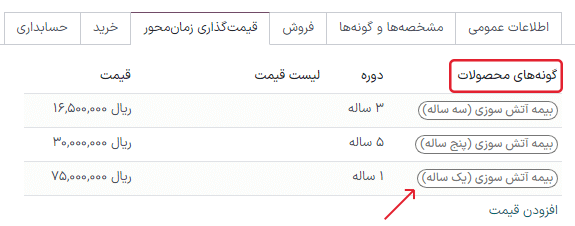
After following those aforementioned steps, the product variants are available for selection on the eCommerce product page.