
حسابهای بانکی و نقدی
You can manage as many bank or cash accounts as needed on your database. Configuring them well allows you to have all your banking data up-to-date and ready for reconciliation with your journal entries.
در برنامه حسابداری سازمانیار هر حساب دارای دفتر روزنامه مختص به خود است تا تمام ثبتهای حساب در آن درج و ارسال شوند. با افزودن حساب بانکی هم دفتر روزنامه و هم حساب به صورت خودکار ایجاد میشوند.
توجه
دفاتر روزنامه و حسابهای نقدی باید به صورت دستی پیکربندی شوند.
در داشبورد حسابداری دفاتر روزنامه به صورت پیشفرض به شکل کارت نمایش داده میشوند و دکمههایی جهت انجام عملیات بر روی آنها وجود دارد.
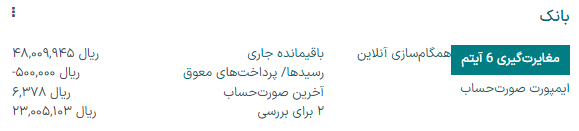
Manage your bank and cash accounts
Connect your bank for automatic synchronization
To connect your bank account to your database, go to , select your bank in the list, click on Connect, and follow the instructions.
همچنین ملاحظه نمائید
ایجاد حساب بانکی
اگر موسسه بانکی شما در سازمانیار موجود نیست، یا اگر نمیخواهید حساب بانکی خود را به پایگاه دادهتان متصل کنید، میتوانید حساب بانکی خود را به صورت دستی پیکربندی کنید.
To manually add a bank account, go to , click on Create it (at the bottom right), and fill out the form.
توجه
سازمانیار به صورت خودکار نوع حساب بانکی (مثل IBAN) را شناسایی کرده و ویژگیهای مختلفی را فعال میکند.
در مسیر یک دفتر روزنامه پیشفرض برای بانک وجود دارد که میتوانید برای پیکربندی حساب بانکی از آن استفاده کنید. دفتر روزنامه را ویرایش کرده و فیلدهای مختلف را مطابق با اطلاعات حساب بانکی خود تکمیل کنید.
ایجاد دفتر روزنامه نقدی
برای ایجاد دفتر روزنامه نقدی جدید وارد مسیر شوید و دکمه جدید را کلیک کرده و در فیلد نوع گزینه نقدی را انتخاب کنید.
For more information on the accounting information fields, read the پیکربندی section of this page.
توجه
دفتر روزنامه نقدی پیشفرضی وجود داشته و میتوان بلافاصله از آن استفاده کرد. از مسیر این دفتر قابل دسترس است.
ویرایش دفتر روزنامه نقدی یا بانکی موجود
برای ویرایش دفتر روزنامه بانکی موجود وارد مسیر شوید و دفتر روزنامهای که قصد ویرایش دارید را انتخاب کنید.
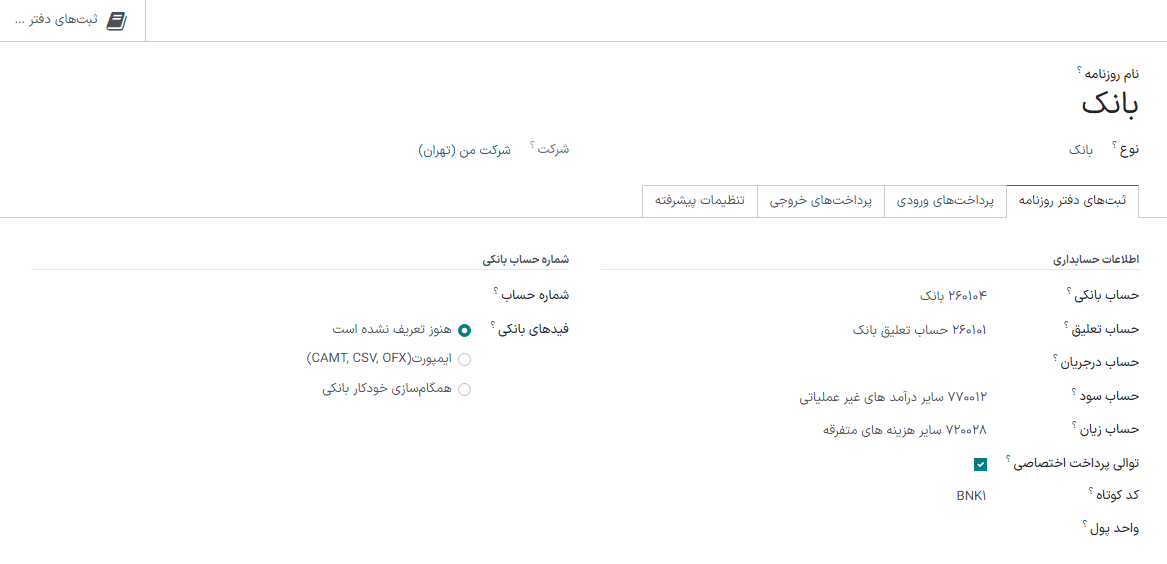
پیکربندی
با توجه به نیازهای خود میتوانید اطلاعات حسابداری و شماره حساب بانکی را ویرایش کنید.
همچنین ملاحظه نمائید
حساب تعلیق
Bank statement transactions are posted on the Suspense Account until the final reconciliation allows finding the right account.
حسابهای سود و زیان
هرگاه تراز باقیمانده صندوق نقد بیشتر از باشد که سیستم محاسبه کرده است حساب سود و هرگاه تراز باقیمانده کمتر از مبلغ محاسبه شده باشد از حساب زیان استفاده میشود.
ارز
You can edit the currency used to enter the statements.
همچنین ملاحظه نمائید
شماره حساب
If you need to edit your bank account details, click on the external link arrow next to your Account Number. On the new page, click on the external link arrow next to your Bank and update your bank information accordingly. These details are used when registering payments.
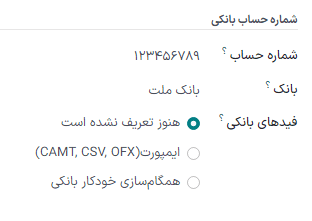
خوراک (فید) بانکی
Bank Feeds defines how the bank statements are registered. Three options are available:
هنوز تعریف نشده، که باید زمانی انتخاب شود که نمیدانید آیا میخواهید حساب بانکی با پایگاه داده همگامسازی شود یا خیر.
Import (CAMT, CODA, CSV, OFX, QIF), which should be selected if you want to import your bank statement using a different format.
همگامسازی خودکار با بانک، که باید زمانی انتخاب شود که بانک با پایگاه داده همگامسازی میشود.
همچنین ملاحظه نمائید
حسابهای تسویه نشده
By default, payments are registered through transitory accounts named outstanding accounts, before being recorded in your bank account.
An outstanding payments account is where outgoing payments are posted until they are linked with a withdrawal from your bank statement.
An outstanding receipts account is where incoming payments are posted until they are linked with a deposit from your bank statement.
These accounts should be of type Current Assets.
توجه
The movement from an outstanding account to a bank account is done automatically when you reconcile the bank account with a bank statement.
Default accounts configuration
The outstanding accounts are defined by default. If necessary, you can update them by going to and update your Outstanding Receipts Account and Outstanding Payments Account.
Bank and cash journals configuration
You can also set specific outstanding accounts for any journal with the type Bank or Cash.
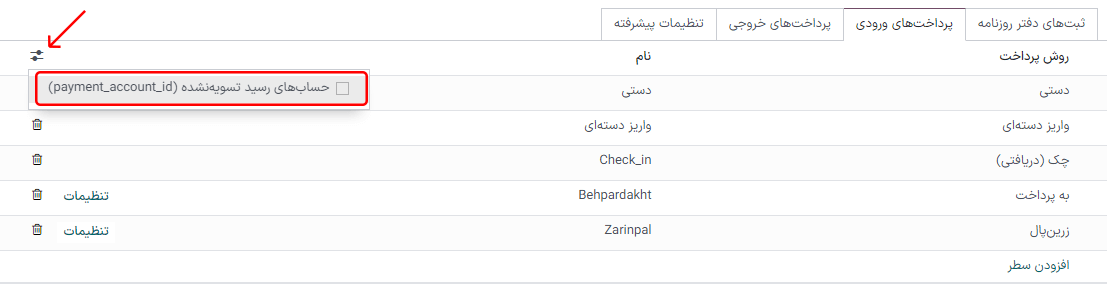
From your Accounting Dashboard, click on the menu selection ⋮ of the journal you want to configure, and click on Configuration, then open the Incoming/Outgoing Payments tab. To display the outstanding accounts column, click on the toggle button and check the Outstanding Receipts/Payments accounts, then update the account.
توجه
If you do not specify an outstanding payments account or an outstanding receipts account for a specific journal, Odoo uses the default outstanding accounts.
If your main bank account is added as an outstanding receipts account or outstanding payments account, when a payment is registered, the invoice or bill's status is directly set to Paid.