
ضایعات در فرآیند تولید
در فرآیند تولید ممکن است نیاز باشد اجزای تولید یا محصول نهایی ضایعات شوند. اگر جزء یا محصول آسیب دیده باشد، یا به هر دلیلی امکان استفاده از آن وجود نداشته باشد این ابزار کاربردی میشود.
در حالت پیشفرض، ضایعات کردن یک جزء یا محصول تمام شده، آن را از انبار فیزیکی خارج کرده و در یک مکان مجازی با نام مکانهای مجازی/ضایعات قرار میدهد. مکان مجازی یک فضای فیزیکی نیست، بلکه عنوانی است که در سازمانیار برای رهگیری محصولاتی استفاده میشود که دیگر در موجودی فیزیکی نیستند.
همچنین ملاحظه نمائید
For more information, see the documentation about the different types of locations.
Components can be scrapped from both the Manufacturing app and the Shop Floor module, before the associated manufacturing order (MO) is closed. Finished products can only be scrapped from the Manufacturing app, and only after closing the associated MO.
نکته
سفارشهای ضایعات از مسیر در دسترس هستند. هر سفارش ضایعات، تاریخ و زمان ایجاد سفارش را به همراه محصول و تعداد ضایعات نمایش میدهد.
برای مشاهده تعداد کل از هر آیتم ضایعات شده وارد مسیر شوید، فیلتر داخلی را از نوار جستجو... بردارید تا تمام مکانهای مجازی نمایش داده شوند. از این لیست مکانی با عنوان مکانهای مجازی/ضایعات را انتخاب کنید.
پنجره ضایعات
Scrapping components and finished products is done through the Scrap pop-up window. The pop-up window can be accessed from an MO in the backend, or the Shop Floor module.
Scrap component from Manufacturing
To scrap a component from an MO, begin by navigating to , and then select an MO. At the top of the MO, click the Scrap button to open the Scrap pop-up window.
Scrap finished product from Manufacturing
To scrap a finished product from an MO, begin by navigating to . Select an open MO, and then click the Produce All button to close it.
To select an MO that has already been closed, navigate to , remove the To Do filter from the Search... bar, and then select the desired MO.
Once closed, click the Scrap button at the top of the MO to open the Scrap pop-up window.
Scrap component from Shop Floor
To scrap a component from the Shop Floor module, begin by navigating to . Then, either click the ⋮ (three vertical dots) button on an MO card, or select a work center from the top navigation, and click the ⋮ (three vertical dots) button on a work order card.
Either method opens the What do you want to do? pop-up window. Click the Scrap button on the window to open the Scrap pop-up window.
پنجره ضایعات
After opening the scrap pop-up window using one of the methods detailed above, select the component or finished product being scrapped, from the Product drop-down menu.
در فیلد تعداد، مقدار مورد اسقاط را وارد کنید.
به طور پیشفرض، فیلد مکان منبع روی مکان پیشتولید انبار تنظیم شده است و فیلد ضایعات روی مکان مکانهای مجازی/اسقاط تنظیم شده است. اگر مکان منبع یا ضایعات باید تغییر کند، یک مکان متفاوت از منوهای کشویی مربوطه انتخاب کنید.
Enable the Replenish Scrapped Quantities checkbox if a picking order should be created to replace the scrapped component(s) upon confirmation of the scrap order. This option should only be enabled for warehouses with two-step or three-step manufacturing enabled, since components are not picked as part of the one-step manufacturing process.
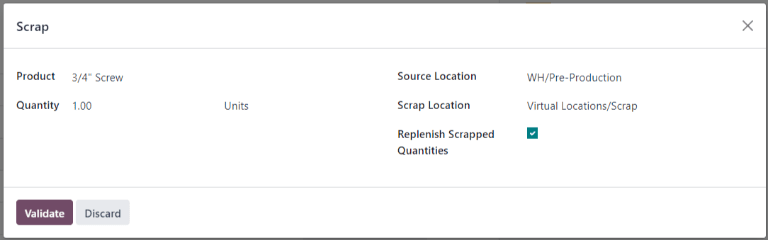
Click the Scrap button to scrap the selected component. After one or more scrap orders have been created, a Scraps smart button appears at the top of the screen. Click it to view a list of all scrap orders for the MO.
If a picking order was automatically created to replenish the scrapped components, it can be accessed by opening the app, clicking the # To Process button on the Pick Components card, and selecting the order.