
دستگاهها و یکپارچهسازیها
The Phone app can be used on many different devices, such as a computer, tablet, mobile phone, and many more. This is helpful in that it reduces costs, and employees can work from anywhere in the world, so long as they have a broadband internet connection.
Odoo Phone is SIP (Session Initiation Protocol) compatible, which means it can be used with any SIP compatible application.
This document covers the process of setting up Odoo Phone across different devices and integrations.
The Phone app is fully integrated with all Odoo apps, allowing users to click into any app, and schedule a call as an activity in the chatter.
Example
For example, in the CRM app, a user can click into an opportunity, and click on Activities in the chatter.
سپس، میتوانند تماس را انتخاب کرده و در بخش تاریخ سررسید، تاریخی را انتخاب کنند.
پس از کلیک بر روی ذخیره، یک فعالیت در کادر پیام نمایش داده میشود.
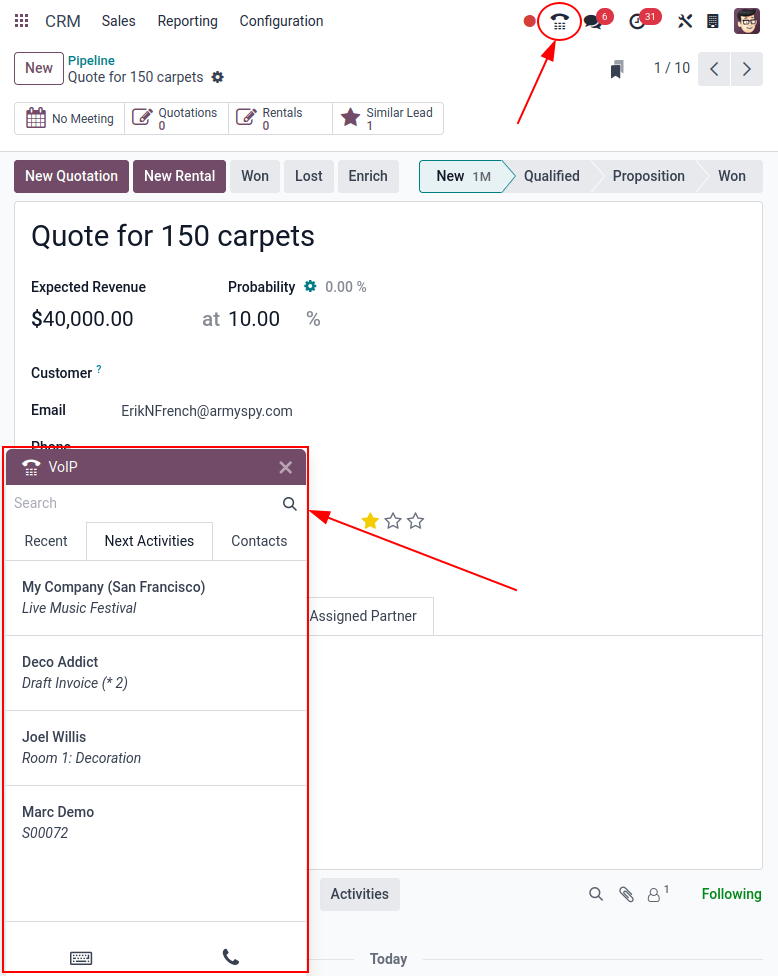
Should the Due Date be for today's date, the activity shows up in the Phone widget.
Use Odoo Phone on a computer
The Odoo Phone app and widget can be used from any browser on a laptop or desktop device. Simply click on the (Phone) icon icon in the upper-right corner, while in the Odoo database, and the widget appears.
همچنین ملاحظه نمائید
To see how to use the Phone widget on a desktop/laptop computer, check out this documentation: ابزارک تلفن.
Use Odoo Phone on a mobile device
مهم
While outgoing calls can be placed using Odoo on a mobile device, the Odoo Phone app does not ring on incoming calls. If the user needs to be reachable on a mobile device at all times, an app, like Zoiper, should be used. Apps like that stay connected in the background at all times.
For more information, see the Zoiper Lite section.
The Odoo Phone app can be used on tablets and mobile phones, through the Odoo Android or Apple iOS applications. Additionally, a mobile web browser can be used to access the database.
هشدار
Odoo Android and Apple iOS applications are no longer being maintained by Odoo on the Android and Apple portals. This means Odoo support only handles limited scopes of Odoo Android or Apple iOS support tickets.
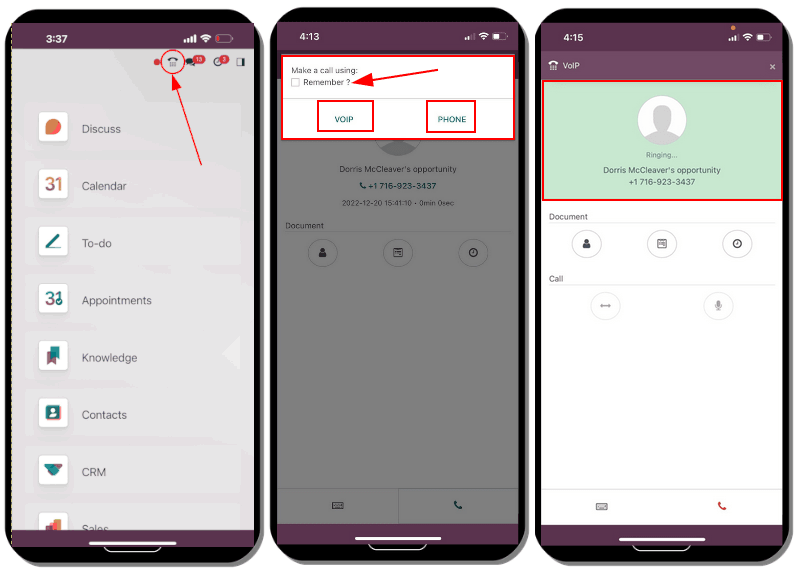
While in the mobile application on a mobile device/tablet, access the Odoo Phone widget, by tapping on the (Phone) icon in the top-right corner. The widget appears in the lower-left corner.
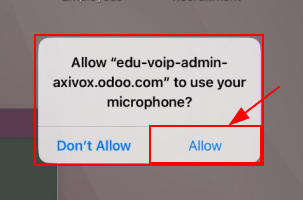
هنگام برقراری اولین تماس از تبلت با استفاده از برنامه تلفن همراه، از کاربر خواسته میشود تا به پایگاه داده اجازه استفاده از میکروفون اعطاء کند. هنگامی که از شما خواسته شد، مجاز را کلیک کنید تا با استفاده از میکروفون به تماس ادامه دهید.
این مرحله، چه از برنامه تلفن همراه سازمانیار استفاده میکنید و چه از مرورگر وب، ضروری است.
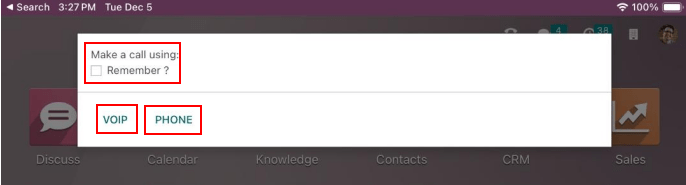
Odoo then asks how to make the call. The two options are: VOIP or Phone (should the tablet be enabled for calling). Click the box next to Remember ? should this decision be the default moving forward.
Here is the layout of what the Phone app looks like on a mobile device:
Zoiper Lite
Zoiper Lite is a free VoIP SIP dialer with voice and video.
To start using the Zoiper app, download it to the device, via the Zoiper download page.
A mobile device is the most common installation, and this document covers how to set up on the Zoiper iOS application. Screenshots and steps may differ depending on the setup conditions.
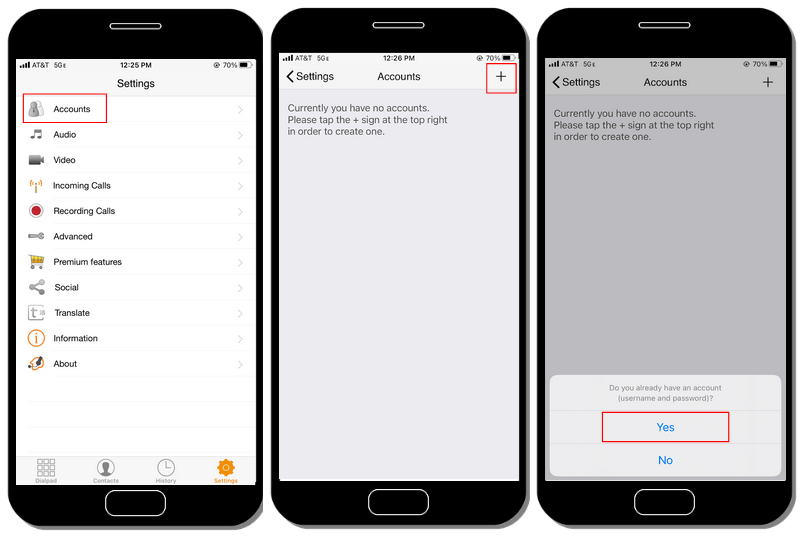
After installing the Zoiper application on the mobile phone, open the application, and tap on Settings. Navigate to , and tap on the + (plus) icon to add an account.
اگر حساب VoIP از قبل راهاندازی شده است، بله را کلیک کنید. این بدان معناست که نام کاربری و رمز عبور حساب از قبل ایجاد شده است.
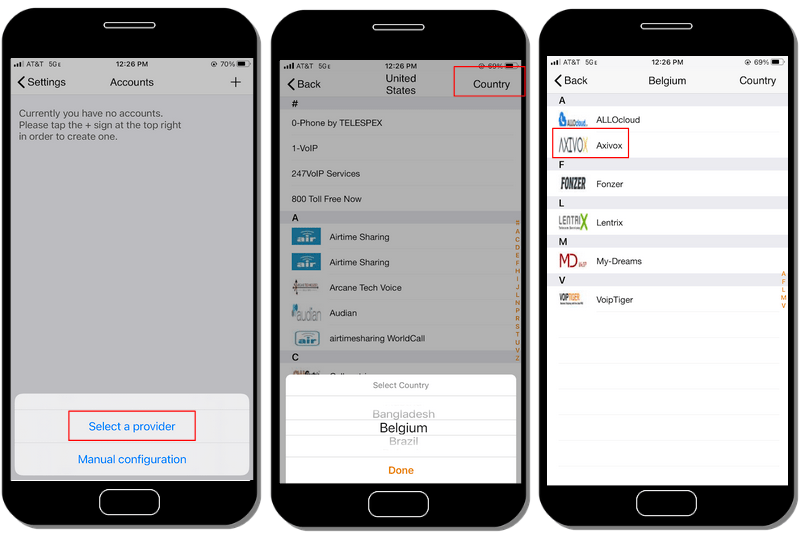
سپس، بر روی انتخاب یک ارائهدهنده ضربه بزنید. در صفحهای که ظاهر میشود، بر روی کشور در گوشه بالا و راست ضربه بزنید تا ارائهدهندگان به یک کشور خاص محدود شوند. کشور ارائهدهندهای که در حال پیکربندی است را انتخاب کنید، سپس ارائهدهنده را پیدا کرده و آن را انتخاب کنید.
Example
If the provider being configured is Axivox, select Belgium. Then, choose Axivox as the provider.
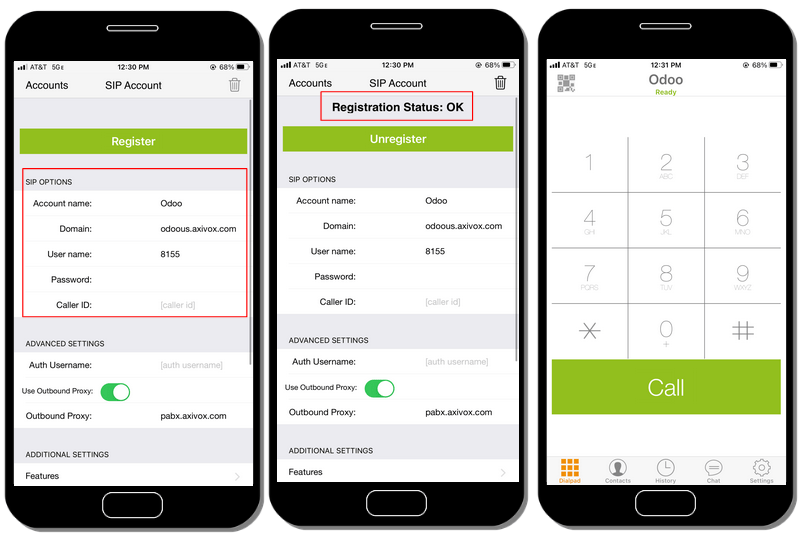
در گزینههای SIP، نام حساب، دامنه، نام کاربری و رمز عبور را وارد کنید. تمام این اطلاعات بر اساس حساب متفاوت است.
نکته
To access this information via the Axivox portal, navigate to . The SIP username, Domain, SIP password, and Address of the proxy server are all present in this tab.
فیلد Zoiper |
فیلد Axivox |
|---|---|
نام حساب |
میتواند هر چیزی باشد |
دامنه |
دامنه |
نام کاربری |
نام کاربری SIP |
رمز عبور |
رمز عبور SIP |
پس از وارد کردن اطلاعات حساب، روی دکمه سبز ثبت نام در بالای صفحه کلیک کنید. پس از بررسی اطلاعات ثبت نام، Zoiper پیامی با مضمون وضعیت ثبت نام: OK نمایش میدهد.
At this point, Zoiper can now make phone calls using the VoIP service.
Linphone
Linphone is an open-source VoIP SIP softphone, used for voice, video, messaging (group and individual), as well as conference calls.
To start using the Linphone app, download it to the device, via the Linphone download page.
A mobile device is the most common installation, and this document covers how to set up the Linphone iOS application. Screenshots and steps may differ depending on the circumstances.
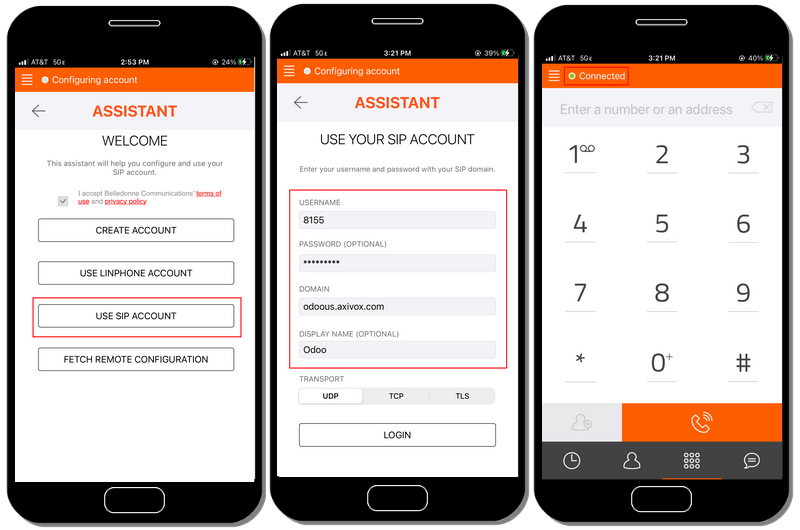
To begin configuring Linphone for use with a SIP provider, first open Linphone, and an assistant screen appears.
از این صفحه، استفاده از حساب SIP را انتخاب کنید. سپس، در صفحه بعدی، نام کاربری، رمز عبور، دامنه و نام نمایشی را وارد کنید. پس از تکمیل، ورود را فشار دهید.
At this point, Linphone is ready to start making calls, once there is a green button at the top of the application screen that reads, Connected.
نکته
Linphone makes a variety of applications for mobile and desktop devices in operating systems, such as Windows, Linux, Apple, and Android. Because Linphone is an open-source project, many new updates are released on a regular basis.
به صفحه مستندات ویکی Linphone مراجعه کنید.