
Support calls with Odoo Phone
A useful tool for support teams, Odoo Phone is used as a way to get in contact with customers who need some help. Using the Phone app can help improve customer satisfaction, reduce support costs, and allows support agents to navigate an Odoo database while on a call.
Instead of being tied to their desks, support agents can take calls from anywhere they have access to the Odoo Phone app.
مهم
این ویژگی مستلزم آن است که حداقل یک صف تماس پیکربندی شود.
همچنین ملاحظه نمائید
ورود به صف پشتیبانی
اگر صفهای تماس تنظیم شدهاند، شیفت پشتیبانی را با ورود به یک صف تماس آغاز کنید.
Begin by clicking (Show Softphone) in the top-right corner of the Odoo database. From there, click (keyboard), then dial the agent connection number and click (phone).
Once the support agent calls their agent connection code, they'll hear a short message letting them know they are logged into the queue. From here, the agent receives support calls according to the administrator's call queue strategy. When a support agent receives a call, the Phone widget appears in the bottom-right corner of their screen with the caller's phone number, as well as their name if the number is tied to a customer profile.
توجه
زمانی که کارکنان پشتیبانی به عنوان کارشناسان ثابت به یک صف تماس اضافه میشوند، برای دریافت تماسهای آن صف نیازی به ورود به صف ندارند.
تماس با مشتری از تیکت پشتیبانی
As part of a support agent's daily tasks, they might be asked to call customers with open support tickets. With Odoo Phone, the support agent can stay in the Odoo database throughout the entire workflow.
از صفحه اصلی پایگاه داده، روی برنامه سامانه پشتیبانی کلیک کنید، وارد یک تیم سامانه پشتیبانی شوید و سپس یک تیکت را باز کنید. اگر تیکت از قبل فعالیت تماس برنامهریزی شدهای ندارد، در کادر گفتگوی تیکت روی فعالیتها کلیک کنید، سپس نوع فعالیت را روی تماس تنظیم نمایید. پس از تکمیل سایر بخشهای فرم فعالیت، روی برنامهریزی کلیک کنید.
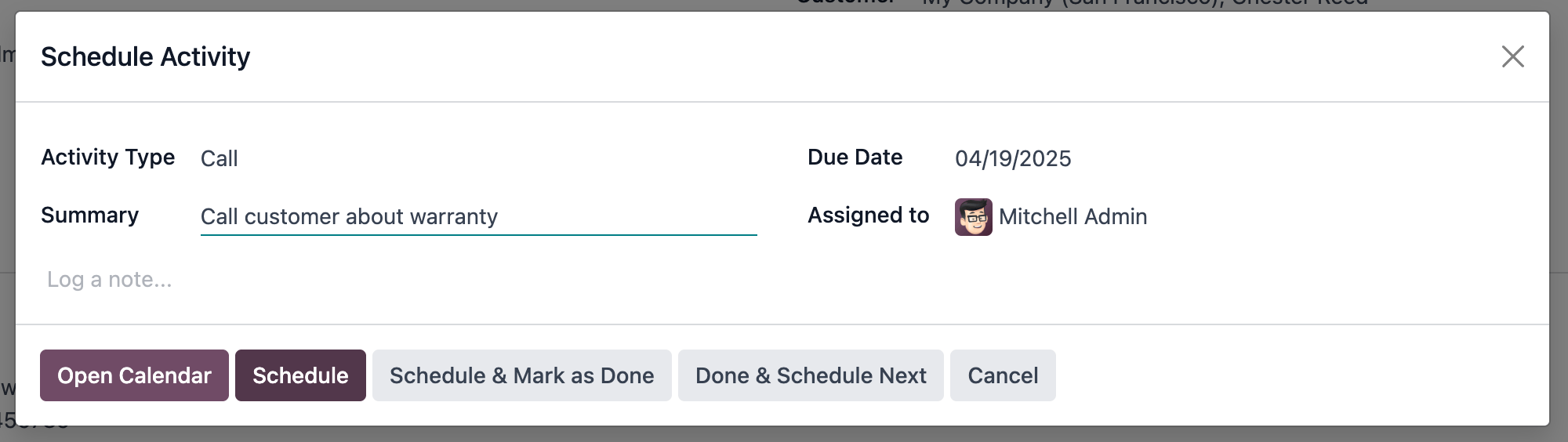
در اینجا، کارشناس سه روش برای برقراری تماس دارد:
ماوس را روی فیلد تلفن در تیکت نگه دارید، سپس روی تماس کلیک کنید.
در کادر گفتگوی تیکت، روی شماره تلفن مشتری کلیک کنید.
In the upper-right corner, click the (Show Softphone) icon to open the Phone widget. From the Activities tab, select the call, and finally click the (phone) icon near the bottom of the widget.
کار در حین تماس
Once the call with the customer begins, the support agent can still move about the Odoo database. Also, there are shortcut icons in the Phone widget that the support agent can use to access common actions, like sending an email to the customer, or pulling up their profile. Learn more about the documents a support agent can access during a call.
کارشناس پشتیبانی همچنین میتواند در حین تماس اقداماتی انجام دهد:
(انتقال): انتقال تماس به عضو دیگری از تیم.
(میکروفون): کارشناس پشتیبانی میتواند صدای خود را در حین تماس قطع کند.
(مکث): قرار دادن تماسگیرنده در حالت انتظار.
رسیدگی به پیگیریهای تماس
The Phone widget can handle some common follow-up tasks, but support agents can still navigate Odoo for tasks not available in the widget.
Here are some of the common follow-up tasks that can be managed from the Phone widget:
با استفاده از آیکون (پاکت)، یک ایمیل پیگیری حاوی مراحل عیبیابی برای مشتری ارسال کنید.
بهروزرسانی آدرس پستی مشتری با کلیک بر روی آیکون (کاربر)، که پروفایل او را باز میکند.
برنامهریزی تماس دوم با مشتری با کلیک بر روی آیکون (ساعت)، تنظیم فیلد نوع فعالیت روی تماس و سپس پر کردن بقیه فرم.
پایان تماس پشتیبانی
When it is time to end the call, the support agent clicks the red (phone) icon in the lower-right corner of the Phone widget. When they do, the call is logged in the ticket's chatter.
If they have not done so already, the support agent then marks the phone call activity as done. To do so, navigate to the ticket's chatter and find the Planned Activities section, then click Mark Done on the planned call to remove it from the Next Activities tab in the Phone widget.
خروج از صف پشتیبانی
پس از پایان شیفت کارشناس یا در زمان استراحت، آنها میتوانند از صف تماس پشتیبانی خارج شوند.
Begin by clicking (Show Softphone) in the top-right corner of the Odoo database. From there, click (keyboard), then dial the agent disconnection number and click phone.
هنگامی که کارشناس پشتیبانی با کد قطع اتصال کارشناس خود تماس میگیرد، پیام کوتاهی میشنود که به او اطلاع میدهد از صف خارج شده است. از این پس، کارشناس تا زمانی که مجدداً وارد نشود، تماسهای پشتیبانی دریافت نخواهد کرد.