
APAC food delivery
Point of Sale provides integrations with popular APAC food delivery platforms, allowing for synchronizing orders, updating menus, and managing store details directly from the POS.
Supported providers:
GrabFood
مهم
A valid account with each delivery provider is required before proceeding.
General configuration
Before setting up a specific delivery provider, configure your general service hours and prepare your products for synchronization.
Service hours
Configure the store timings to define when delivery services are available. These hours synchronize directly with the respective delivery platforms.
Navigate to .
Click New and enter a Name for the service hours (e.g.,
Weekdays).Click Add a line, then set the Day of Week, Opening from, and Opening to for that time slot.
Repeat the previous step for each day and time slot when delivery is available.
محصولات
To ensure products are synchronized and available for delivery:
Navigate to .
Select a product to open its form.
Navigate to the Point of Sale tab.
Enable the Available for Platform Orders checkbox under the Platform Order section.
Assign a POS product category to the product. Only products whose POS category is selected in the entity's Available Product Categories are published to the delivery platform (see Configure the entities).
GoFood
The GoFood integration allows businesses in Indonesia to manage food delivery orders directly from the POS.
As a prerequisite, activate the Platform Order Provider:
GoFood module (technical name: pos_platform_order_gofood) to integrate with GoFood and receive
and manage orders.
پیکربندی
GoBiz Developer Portal
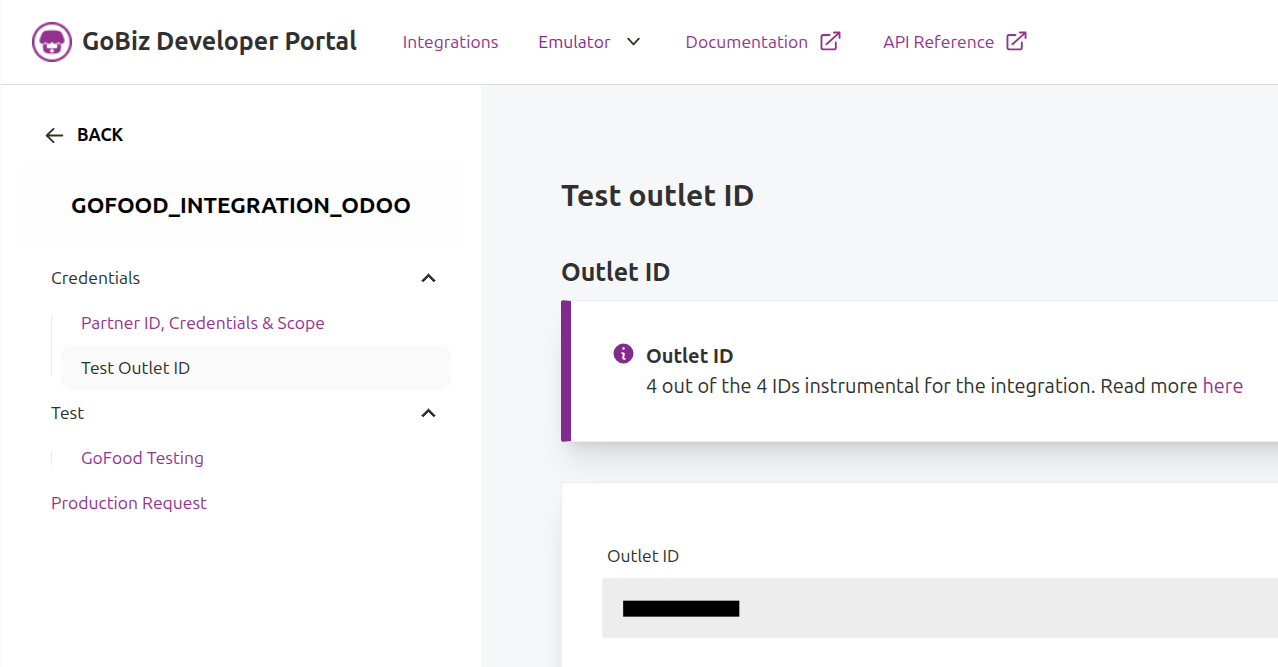
Start by creating a GoFood account on the GoFood website. Next, navigate to the GoBiz Developer Portal to retrieve the necessary API credentials used to authenticate and synchronize data between Odoo and GoFood:
App ID
Secret
Partner ID
Relay Secret
Outlet ID
For the steps to retrieve these credentials, refer to the GoBiz Developer Portal documentation.
توجه
There is no separate sign-up required for the developer portal. Log in using the same merchant credentials associated with the GoFood/GoBiz account.
پیکربندی اودوو
Configure the GoFood provider in Odoo with the credentials retrieved from the GoBiz Developer Portal, allowing Odoo to receive orders and data from GoFood correctly.
Navigate to .
Select GoFood and change the State to Enabled.
Under the Credentials tab, enter the App ID, Secret Key, Partner ID, and Relay Secret Key retrieved from the GoBiz Developer Portal.
توجه
To test the integration before formal setup, change the State to Test.
Configure the entities
An entity represents a specific physical store or outlet registered on the delivery platform, linking it directly to a point of sale.
Navigate to , then click New to create a GoFood entity.
Fill in the Name field and verify the Provider field is set to GoFood.
Fill in the External ID field with the Outlet ID retrieved from the GoBiz Developer Portal.
Select the related Point of Sale and the Service Hours (see Service hours).
Under the Accounting tab, choose the Payment Method and select the appropriate Pricelist.
Under the General tab, select the Available Product Categories applicable to the GoFood platform. Only products from these categories that are available for platform orders are published to GoFood.
مهم
Ensure the currency of the selected pricelist matches the company’s country and fiscal localization settings.
همچنین ملاحظه نمائید
Go live
Once the configuration and testing are complete, contact the GoFood account manager directly, or send an inquiry to gofood@go-jek.com, to switch the account to production and officially go live.
Order flow
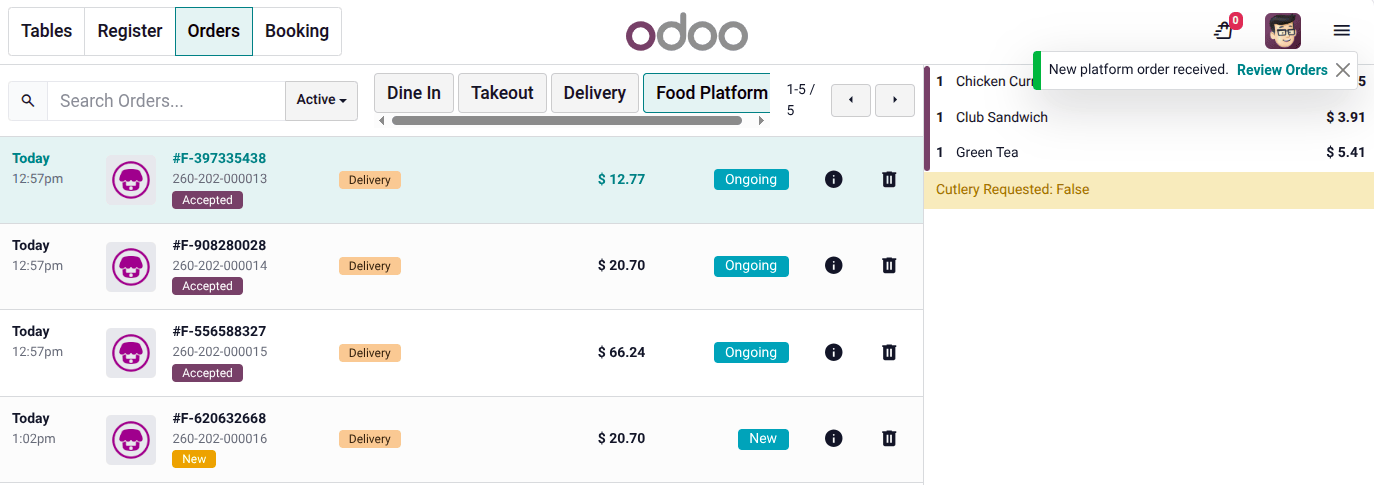
An order placed via the configured delivery platform triggers a notification. To manage these orders, open the orders' list view by:
Clicking Review Orders on the notification popup.
Clicking the (delivery bag) icon for online orders and New.
توجه
Clicking this icon displays the number of orders at each stage: New, Ongoing, and Done.
The New button indicates newly placed orders, Ongoing is for accepted orders, and Done is for orders ready to be delivered.
Order rejection
Sometimes, the shop or restaurant may want to reject an order. In this case, open the orders' list view,
سفارش مورد نظر را انتخاب کنید
Click the Reject button.
Select one of the following reasons from the popup window:
High Demand
Restaurant Closed
Items Out of Stock
Others